

Safety information
WARNING
The system cannot serve as a substitute for
the driver’s personal judgment in assessing
the traffic situation. Based on the limits of
the system, it cannot independently react to
all traffic situations. There is a risk of acci-
dent, injury, and property damage. Adjust
driving style to traffic conditions. Watch the
surrounding traffic situation closely, be ready
to take over steering and braking at any time,
and actively intervene where appropriate.
Sensors
The system is controlled by a camera behind
the windshield.
Display
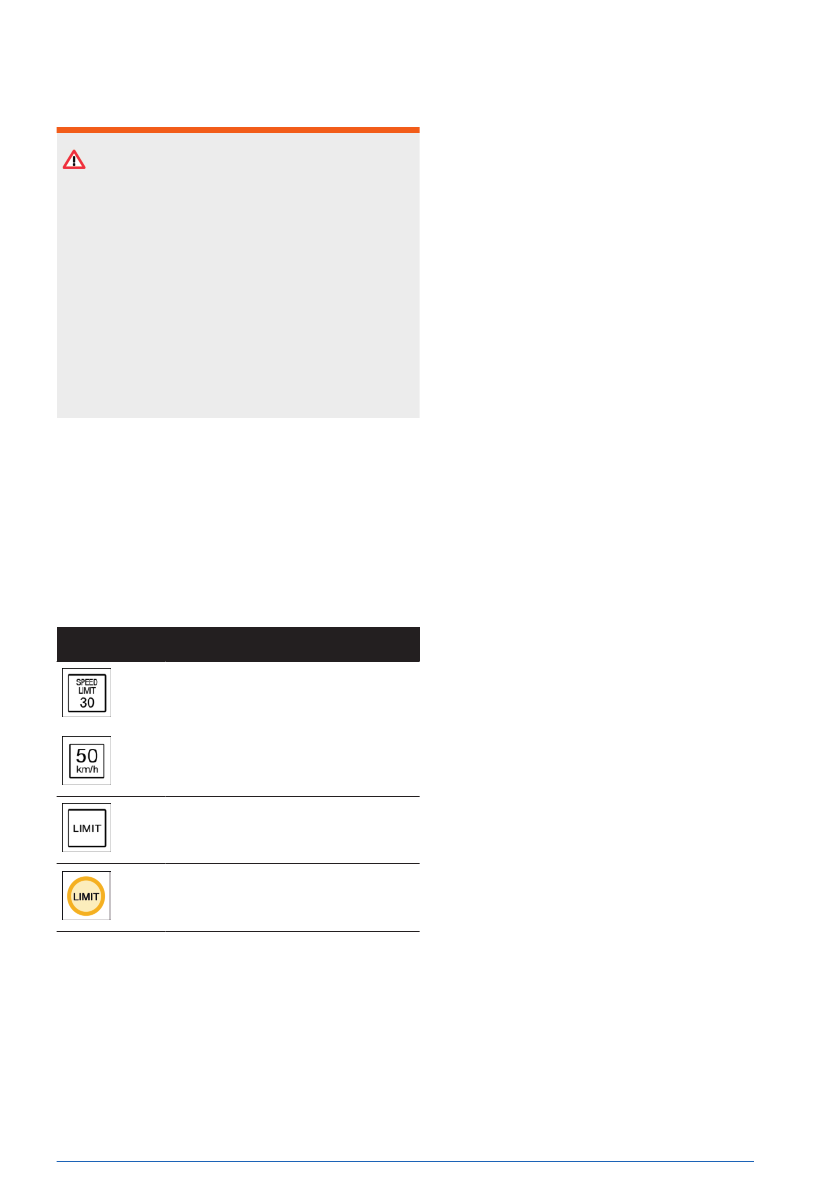
Speed Limit Info
Icon
Description
Current speed
limit.
Depending on the national-
market version, it is possible
to switch between the units of
measurement.
No data on current speed limit
available.
Speed Limit Info not available.
Warning signals
Depending on the settings, an acoustic signal
sounds if the detected speed limit is exceeded
or the speed limit changes. The display also
flashes if the detected speed limit is exceeded.
Settings
Individual settings can be configured for Speed
Limit Info, e.g., warnings issued if the speed is
exceeded or the permissible maximum speed
changes.
1.
Go through the menu as follows: Apps
menu / "Vehicle" / "Driving settings" /
"Driver Assistance" / "Driving" / "Speed
Limit Assistant".
2.
Select the desired setting.
System limits
System limits of the sensors
The sensors may not work properly, e.g., show
something that is
incorrect.
Additional information:
▷
.
Functional limitations
Speed Limit Info may be restricted and pro-
vide incorrect information in the following sit-
uations:
▷
Traffic signs are completely or partially con-
cealed by objects, stickers, or paint.
▷
Traffic signs do not adhere to applicable
standards.
▷
In areas that are not included in the naviga-
tion system map data.
▷
If navigation system map data is invalid,
outdated, or unavailable.
▷
When roads deviate from the navigation
such as due to changes in road layout.
▷
When driving very close to the vehicle in
front of you.
▷
When passing buses or trucks with traffic
signs applied to them.
▷
In case of electronic traffic signs.
Driver assistance systems
Controls
221
Online Edition

The icon for the respective system is grayed
out if the system has failed or if the functional
requirements have not been met.
Icon
Speed control system
Cruise Control.
Distance Control.
Assisted Driving Mode: Cruise Control
with Distance Control, Steering Assis-
tance with lane keeping.
Interrupting speed control systems
automatically
Depending on the system, speed control
systems are interrupted automatically, for in-
stance in the following situations:
▷
When changing from selector lever position
D to P, N, or R.
▷
While Dynamic Stability Control regulates
driving stability.
▷
While Dynamic Stability Control is disabled.
▷
"SPORT PLUS": Upon activating the in-
creased driving dynamics setting.
▷
When braking manually.
Interrupting speed control systems
manually
Speed control systems can be stopped man-
ually.
▷
Press the on/off button on the left
side of the steering wheel.
▷
Press the MODE button on the left
side of the steering wheel.
The speed control system has been stopped.
Continuing speed control systems
To resume the speed control system,
press the on/off button on the left side
of the steering wheel.
Switching off speed control systems
Speed control systems can be switched off
manually.
To turn off the speed control system,
press and hold the on/off button on the
left side of the steering wheel until the
indicators go
out.
Speed control systems switch off automatically
when drive-ready state is switched off.
Adjusting speed values
The speeds for the speed control systems can
be adjusted on the steering wheel.
On the left side of the steering wheel,
repeatedly press the rocker button up
or down until the desired value is set.
▷
Each time the rocker button is pressed
to the resistance point, the set speed in-
creases or decreases by 1 mph/1 km/h.
▷
Each time the rocker button is pressed past
the resistance point, the set speed changes
by a maximum of 5 mph/10 km/h.
Display in the instrument cluster
Marking on speedometer
A marking for the speed set
for the speed control system is
shown on the speedometer.
Driver assistance systems
Controls
223
Online Edition

Button Function
Store current
speed.
Speed Limit Assistant: accept sug-
gested speed manually.
Set speed.
Turning on the Cruise Control
Cruise Control can be
switched on as follows:
For vehicles equipped with Distance Control:
change the Cruise Control mode to Cruise Con-
trol without Distance
Control.
In vehicles without Distance Control: turn on
the Cruise Control with the buttons on the
steering wheel.
1.
To switch on Cruise Control, press
the on/off button on the left side of the
steering wheel.
2.
If necessary, repeatedly press the
MODE button on the left side of the steer-
ing wheel until Cruise Control is selected.
Cruise Control is active. The current speed is
maintained and stored as
desired speed.
The indicator lights on the instrument cluster
illuminate and the mark on the speedometer is
set to the current
speed.
The driving mode changes or Dynamic Stabil-
ity Control activates when Cruise Control is
switched on.
Additional
information:
Distance Control, refer to page
.
Turning the speed control system
off/interrupting
The speed control system can be turned off or
canceled automatically or
manually.
Additional information:
Speed control systems, refer to page
Adjusting the speed
Store/maintain speed
The speed can be maintained and stored us-
ing the buttons on the steering wheel.
Press the rocker button on the left side
of the steering wheel up or down once
while the system is stopped.
When Cruise Control is switched on, the current
speed is maintained and saved as the desired
speed.
The saved speed
is shown on the speedome-
ter.
If the Speed Limit
Assistant is off, you can also
save your current speed with the press of a
button:
Press the SET button on the left side of
the steering wheel.
Changing the speed
The speed can be changed with the buttons on
the steering wheel.
On the left side of the steering wheel,
repeatedly press the rocker button up
or down until the desired speed is set.
If active, the displayed speed is stored and
the vehicle reaches the stored speed when the
road is clear.
The
maximum speed that can be set depends
on the vehicle.
Press
rocker button to resistance point and
hold: The vehicle accelerates or decelerates
without the accelerator
pedal being pressed.
After the rocker button is released, the vehicle
maintains the final speed achieved. Pressing
the switch beyond the resistance point causes
the vehicle to accelerate more rapidly.
Driver assistance systems
Controls
225
Online Edition
The system maintains the set speed on clear
roads. The vehicle accelerates or brakes auto-
matically.
If a vehicle
is driving ahead of you, the system
adjusts the speed of the vehicle so that the set
distance to the vehicle ahead is maintained.
The speed is adjusted as far as the given sit-
uation allows.
If the
preceding vehicle brakes to a stop then
drives off again shortly afterward, Distance
Control is capable of detecting this depending
on vehicle equipment and
ambient conditions.
Otherwise, drive off independently such as by
stepping on the accelerator pedal or by press-
ing the button for the speed setting on the
steering wheel.
Distance
Control is operated using the buttons
on the left of the steering wheel. The distance
is set via
iDrive.
Distance Control information is displayed on
the instrument cluster.
Safety information
WARNING
The system cannot serve as a substitute for
the driver’s personal judgment in assessing
the traffic situation. Based on the limits of
the system, it cannot independently react to
all traffic situations. There is a risk of acci-
dent, injury, and property damage. Adjust
driving style to traffic conditions. Watch the
surrounding traffic situation closely, be ready
to take over steering and braking at any time,
and actively intervene where appropriate.
WARNING
An unsecured vehicle can begin to move and
possibly roll away. There is a risk of accident,
injury, and property damage. Before leaving
the vehicle, secure the vehicle against rolling
away.
In order to ensure that the vehicle is secured
against rolling away, follow the following:
▷ Set the parking
brake.
▷ Make sure that selector lever position P
is engaged.
▷ On uphill grades or on downhill slopes,
turn the front wheels in the direction of
the curb.
▷ On uphill grades or on downhill slopes,
also secure the vehicle, for instance with
a wheel chock.
WARNING
The set speed can be incorrectly adjusted or
called up by mistake. There is a risk of acci-
dent, injury, and property damage. Adjust the
set speed to the traffic conditions. Watch sur-
rounding traffic closely and actively intervene
where appropriate.
WARNING
Risk of accident is greater when there is a
high speed differential to other vehicles, for
instance in the following situations:
▷ When approaching a slowly moving ve-
hicle at speed.
▷ Vehicle suddenly swerving into own
lane.
▷ When approaching stationary vehicles at
speed.
There is a risk of injury and danger to life.
Watch surrounding traffic closely and actively
intervene where appropriate.
Driver assistance systems
Controls
227
Online Edition
▷
While Dynamic Stability Control is disabled.
▷
"SPORT PLUS": When the setting for en-
hanced driving dynamics is enabled.
▷
While Dynamic Stability Control regulates
driving stability.
▷
When the driver’s seat belt and driver’s
door are opened.
▷
If the system has not detected objects
for an extended period, for instance on a
road with very little traffic without curb or
shoulder markings.
▷
If the detection range of the radar is im-
paired, for instance by contamination or
heavy precipitation.
▷
After a longer stationary period when the
vehicle has been braked to a stop by the
system.
Turning the speed control system
off/interrupting
The speed control system can be turned off or
canceled automatically or
manually.
Additional information:
Speed control systems, refer to
page
Continuing Cruise Control while driv-
ing
WARNING
The set speed can be incorrectly adjusted or
called up by mistake. There is a risk of acci-
dent, injury, and property damage. Adjust the
set speed to the traffic conditions. Watch sur-
rounding traffic closely and actively intervene
where appropriate.
An interrupted Cruise Control can be continued
by calling up the stored speed. The difference
between the current speed and the stored
speed should be as little as
possible.
Additional information:
Cruise Control, refer to page
Continuing Cruise Control while ve-
hicle is stationary
If the Cruise Control is stopped, the driver may
need to confirm their intention to drive off in
certain situations.
The
displays show the following:
The mark on the speedometer
illuminates gray.
The Distance Control indicator light illu-
minates green.
Cruise Control can be continued as follows:
▷
Pressing the accelerator pedal.
▷
Press the rocker button on the left
side of the steering wheel.
▷
Press the SET button on the left
side of the steering wheel.
Distance
Safety information
WARNING
The system cannot serve as a substitute for
the driver’s personal judgment. Due to the
system limits, deceleration can be late. There
is a risk of accident, injury, and property dam-
age. Be aware of the surrounding traffic sit-
uation at all times. Adjust the distance to the
traffic and weather conditions and maintain
the prescribed safety distance, possibly by
braking.
Adjusting the distance
1.
To adjust the distance, go through the
menu as follows: Apps menu / "Vehicle" /
Driver assistance systems
Controls
229
Online Edition

Icon
Description
Indicator light flashes
gray:
Conditions are not adequate for the
system to work.
The
system was deactivated but ap-
plies the brakes until you actively
resume control by pressing on the
brake pedal or accelerator pedal.
Warning light flashes red and acous-
tic signal
sounds:
Brake and make an evasive maneu-
ver, if necessary.
Assisted View
Depending on vehicle equipment and national-
market version, in Assisted View, Distance
Control information is displayed on the central
display area of the
instrument cluster.
Additional information:
Assisted View, refer to page
.
Displays in the Head-up display
Set speed
Depending on vehicle equipment, some speed
control system information can also be dis-
played on the Head-up display.
System limits
System limits of the sensors
Distance Control is subject to the system limits
of the
sensors.
Additional information:
▷
Sensors of the vehicle, refer to page
.
▷
Driver Attention Camera, refer to page
Detection range
The vehicle sensors detect the traffic situation
in their detection
range.
The sensor detection capability and automatic
braking power are
limited.
For instance, two-wheeled vehicles may not be
detected.
Deceleration
Distance Control does not decelerate in the fol-
lowing situations:
▷
For pedestrians or similarly slow-moving
road users.
▷
For cross traffic.
▷
For oncoming traffic.
Merging vehicles
Distance Control may not be able automati-
cally restore your chosen distance if a preced-
ing vehicle suddenly cuts into your lane. It
may not be possible to restore the selected
distance in certain situations, including if you
are driving significantly faster than vehicles
driving ahead of you, for instance when rapidly
Driver assistance systems
Controls
231
Online Edition
Sensors in the steering wheel detect whether
the steering wheel is being
touched.
Depending on the vehicle equipment and
national-market version, the Driver Attention
Camera in the instrument cluster monitors the
driver's
attention.
System information is indicated on the instru-
ment cluster displays and by the steering
wheel LEDs.
If a lane
boundary is crossed, the system is-
sues a warning by vibrating the steering wheel.
The steering wheel vibration intensity can be
adjusted.
Safety information
WARNING
The system cannot serve as a substitute for
the driver’s personal judgment in assessing
the traffic situation. Based on the limits of
the system, it cannot independently react to
all traffic situations. There is a risk of acci-
dent, injury, and property damage. Adjust
driving style to traffic conditions. Watch the
surrounding traffic situation closely, be ready
to take over steering and braking at any time,
and actively intervene where appropriate.
The Cruise Control and Distance Control alerts
also apply.
Additional
information:
▷
.
▷
Distance Control, refer to page
Overview
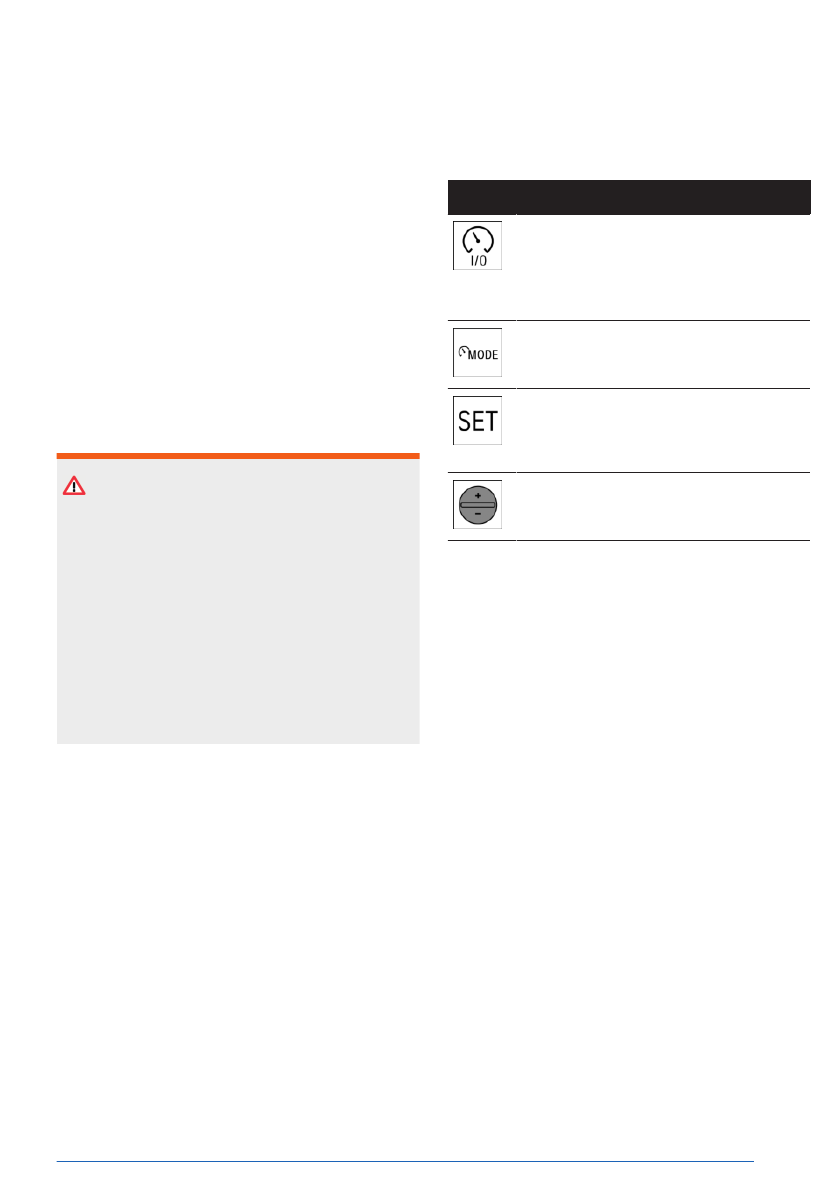
Buttons on the steering wheel
Button Function
Turn last active speed control sys-
tem on/off.
Interrupt
and continue speed control
systems.
Select the desired speed control
system.
Store current
speed.
Speed Limit Assistant: accept sug-
gested speed manually.
Set speed.
Sensors
Assisted Driving Mode is controlled by the fol-
lowing sensors:
▷
Camera behind the windshield.
▷
Front radar sensor.
▷
Depending on vehicle equipment, via the
front, side radar sensors.
▷
Depending on vehicle equipment, via the
rear, side radar sensors.
▷
The sensors in the steering wheel.
▷
Depending on the vehicle equipment and
national-market version, the Driver Atten-
tion Camera in the instrument cluster.
Additional information:
▷
Sensors of the vehicle, refer to page
.
▷
Driver Attention Camera, refer to page
Functional requirements
To use Assisted Driving Mode, the following
functional requirements must be met:
Driver assistance systems
Controls
233
Online Edition
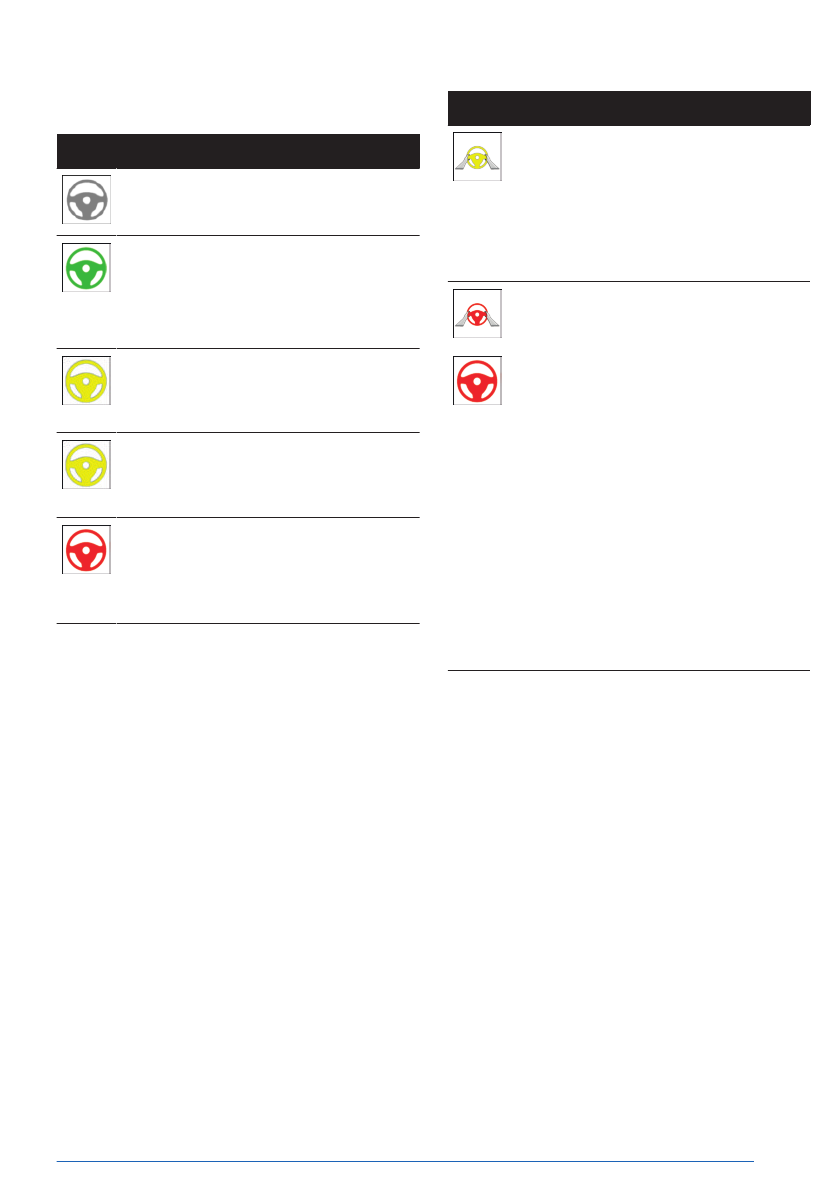
Displays in the instrument cluster
Icon
Description
Indicator light illuminates
gray:
The system is ready.
Indicator light illuminates
green:
The system is activated.
The system supports the driver in
keeping the vehicle within the lane.
Warning light flashes yellow and
steering wheel
vibrates:
A lane boundary has been crossed.
Warning light illuminates yellow and
acoustic signal
sounds:
System interruption is imminent.
Warning light flashes red and acous-
tic signal sounds:
The
system is switched off or will be
interrupted very soon.
Icon
Description
Warning light illuminates
yellow:
The driver’s hands are not currently
gripping the steering wheel. The sys-
tem is still
active.
Grab the steering wheel with your
hands.
Warning light illuminates red, acous-
tic signal sounds:
The
driver’s hands are not currently
gripping the steering wheel or, de-
pending on vehicle equipment and
national-market version, the driver is
not looking at the surrounding traffic.
System interruption is
imminent.
The system reduces the speed to a
standstill if
applicable.
It is possible that the system will
not execute any supporting steering
movements.
Immediately
grasp the steering wheel
with your hands and pay attention to
the surrounding traffic.
Depending on the vehicle equipment and na-
tional-market version, a Check Control mes-
sage is displayed if the Driver Attention Cam-
era detects that the driver
is inattentive.
Depending on vehicle equipment and national-
market version, in Assisted View, Assisted
Driving Mode information is displayed on the
central display area of the
instrument cluster.
Additional information:
Assisted View, refer to page
.
Driver assistance systems
Controls
235
Online Edition

Weather
With unfavorable weather or light conditions,
Assisted Driving Mode may be limited as fol-
lows:
▷
Poorer recognition of vehicles and lane
boundaries.
▷
Short-term interruptions in case of already
detected vehicles and lane boundaries.
Drive attentively, and react to the current sur-
rounding traffic situation. If necessary, inter-
vene actively, for instance by braking, steering
or making an evasive maneuver.
Lane Change Assistant
Principle
The Lane Change Assistant also performs
slight steering interventions to assist the driver
when changing lanes on
multilane roads.
The Lane Change Assistant is switched on/off
via iDrive and operated with the turn signal
lever.
The following
system functions are shown on
the instrument
cluster.
The Lane Change Assistant uses the Assisted
Driving Mode sensors.
Safety information
WARNING
The system cannot serve as a substitute for
the driver’s personal judgment in assessing
the traffic situation. Based on the limits of
the system, it cannot independently react to
all traffic situations. There is a risk of acci-
dent, injury, and property damage. Adjust
driving style to traffic conditions. Watch the
surrounding traffic situation closely, be ready
to take over steering and braking at any time,
and actively intervene where appropriate.
Federal, state or local laws differ and the use
of this function may be prohibited or limited.
Before use, check federal,
state and local laws.
The Assisted Driving Mode alerts also apply.
Additional
information:
Assisted Driving Mode, refer to page
Functional requirements
To use the Lane Change Assistant, the follow-
ing functional requirements must be met:
▷
The functional requirements for Assisted
Driving Mode have been met.
▷
Driving on a highway-like road without
pedestrians or cyclists. The road is also
structurally separated from oncoming traf-
fic, e.g., guard rails.
▷
A vehicle has been detected at a sufficient
distance behind your own vehicle since be-
ginning the drive.
▷
Crossable lane boundaries are detected.
▷
Vehicle speed is max. approx.
110 mph/180 km/h.
▷
The minimum speed is country-specific.
▷
If your vehicle is equipped with a trailer
hitch, you must set on the control display
that you are using a trailer or rear carrier,
respectively.
Additional information:
▷
Assisted Driving Mode, refer to page
.
▷
Driving with trailer or rear carrier, refer to
page
.
Turning the Lane Change Assistant
on/off
To turn the Lane Change Assistant on/off,
go through the menu as follows: Apps
menu / "Vehicle" / "Driving settings" / "Driver
Assistance" / "Driving" / "Lane Change
Assistant" / "Lane Change Assistant".
Driver assistance systems
Controls
237
Online Edition

Functional requirements
To change lanes when route guidance is on,
the following functional requirements must be
met:
▷
Cruise Control and Distance Control are ac-
tivated.
▷
Driving on a highway or highway-like road.
▷
A situation-dependent minimum speed has
been reached.
▷
The system detects a sufficiently large gap
in traffic in the adjacent lane.
▷
A crossable lane boundary on the side of
the desired lane change is detected.
▷
Destination guidance is active on the navi-
gation system.
The
function is not available when using
navigation software via Apple CarPlay or
Android Auto.
▷
The function must be available in the coun-
try in which the vehicle is driven.
▷
The Driver Attention Camera in the instru-
ment cluster detects that the driver is pay-
ing attention to the surrounding traffic.
▷
If your vehicle is equipped with a trailer
hitch, you must set on the control display
that you are using a trailer or rear carrier,
respectively.
Additional
information:
Driving with trailer or rear carrier, refer to
.
Switching lane change on/off with
active destination guidance
To turn the Lane Change Assistant on/off
while guidance is on, go through the menu
as follows: Apps menu / "Vehicle" / "Driving
settings" / "Driver Assistance" / "Driving" /
"Lane Guiding with Navigation" / "Lane
Guiding with Navigation".
Switching the steering wheel jerk
on/off
To enable/disable the steering wheel jerk for
Lane Change Assistant, go through the menu
as follows: Apps menu / "Vehicle" / "Driving
settings" / "Driver Assistance" / "Driving" /
"Lane Guiding with Navigation" / "Steering
wheel impulse".
Changing lanes
A corresponding prompt appears on the in-
strument cluster when changing lanes is nec-
essary to reach a destination. In addition, a
slight jerk can be felt on
the steering wheel.
To change lanes, follow the instructions on the
instrument cluster.
1.
The system detects a suitable gap
in the flow of traffic in the adjacent lane. An
icon with a green checkmark is displayed
on the instrument cluster. The system pre-
pares for the lane change.
2.
When a suitable gap is detected, the speed
is adapted so that the vehicle remains level
with the opening.
3.
A Check Control message indicates a lane
change suggestion.
4.
When the traffic permits changing lanes,
the driver can steer the vehicle into an adja-
cent lane.
For vehicles
equipped with Lane Change
Assistant: once the Check Control message
appears, the Lane Change Assistant can be
started by, e.g., operating the turn signal.
5.
If necessary, the system automatically
starts additional lane changes.
Driver assistance systems
Controls
239
Online Edition

▷
Camera behind the windshield.
▷
Front radar sensor.
▷
Side radar sensors, front.
▷
Side radar sensors, rear.
▷
The sensors in the steering wheel.
▷
Driver Attention Camera.
Additional
information:
Sensors of the vehicle, refer to page
Functional requirements
To use Assisted Driving Mode Plus, the follow-
ing functional requirements must be met:
▷
Assisted Driving Mode Plus must be avail-
able in the country in which the vehicle is
driven.
▷
The functional requirements for Assisted
Driving Mode have been
met.
Assisted Driving Mode is active and the
LED displays on the steering wheel are
switched on.
▷
Driving on a highway-like road without
pedestrians or cyclists. The road is also
structurally separated from oncoming traf-
fic, e.g., guard rails.
▷
Lane boundaries are detected.
▷
The lane is sufficiently wide.
▷
The bend radius is sufficiently large.
▷
The navigation system must clearly identify
the road and vehicle position.
▷
This function must be available on the road
on which the vehicle is driving.
▷
Do not allow antennas on the roof to be-
come covered, e.g., by roof loads or snow.
▷
The Driver Attention Camera in the instru-
ment cluster detects that the driver is pay-
ing attention to the surrounding traffic.
▷
If your vehicle is equipped with a trailer
hitch, you must set on the control display
that you are using a trailer or rear carrier,
respectively.
▷
A vehicle has been detected ahead of you.
▷
Vehicle speed must be less than approx.
40 mph/60 km/h.
Additional information:
▷
Assisted Driving Mode, refer to page
.
▷
Driving with trailer or rear carrier, refer to
page
.
Switching Assisted Driving Mode
Plus on/off
To turn Assisted Driving Mode Plus on/off,
go through the menu as follows: Apps
menu / "Vehicle" / "Driving settings" / "Driver
Assistance" / "Driving" / "Assisted Driving
Plus" / "Assisted
Driving Plus".
Assisted Driving Mode Plus is automatically
offered when Assisted Driving Mode is active
and all functional requirements for Assisted
Driving Mode Plus have been
met.
To activate this function, remove your hands
from the steering wheel. Remain ready to steer
and brake at all
times.
Two green LED lights are illuminated on the
steering wheel.
The indicator light in the instrument
cluster is shown in green.
The system begins to assist the driver with
vehicle control.
When
the system is switched on, the following
functions are enabled:
▷
Forward Collision Mitigation.
▷
Side Collision Protection.
Driver assistance systems
Controls
241
Online Edition
Safety information
WARNING
The system cannot serve as a substitute for
the driver’s personal judgment in assessing
the traffic situation. Based on the limits of
the system, it cannot independently react to
all traffic situations. There is a risk of acci-
dent, injury, and property damage. Adjust
driving style to traffic conditions. Watch the
surrounding traffic situation closely, be ready
to take over steering and braking at any time,
and actively intervene where appropriate.
WARNING
The set speed can be incorrectly adjusted or
called up by mistake. There is a risk of acci-
dent, injury, and property damage. Adjust the
set speed to the traffic conditions. Watch sur-
rounding traffic closely and actively intervene
where appropriate.
Overview
Buttons on the steering wheel
Button Function
Accept suggested speed manually.
Turning Speed Limit Assistant
on/off
1.
To configure the settings for Speed Limit
Assistant, go through the menu as follows:
Apps menu / "Vehicle" / "Driving settings" /
"Driver Assistance" / "Driving" / "Speed
Limit Assistant".
2.
Select the desired setting:
▷
"Adjust automatically": depending on
the equipment, detected speed limits
are applied automatically.
▷
"Adjust manually": detected speed limits
can be applied manually.
▷
"Show current limit": current speed lim-
its are displayed without being applied
in the instrument cluster.
▷
"Off": depending on the national-market
version, Speed Limit Info and Speed
Limit Assistant will be
turned off.
If necessary, other anticipatory comfort
functions will be turned off.
Additional
information:
Speed Limit Info, refer to page
.
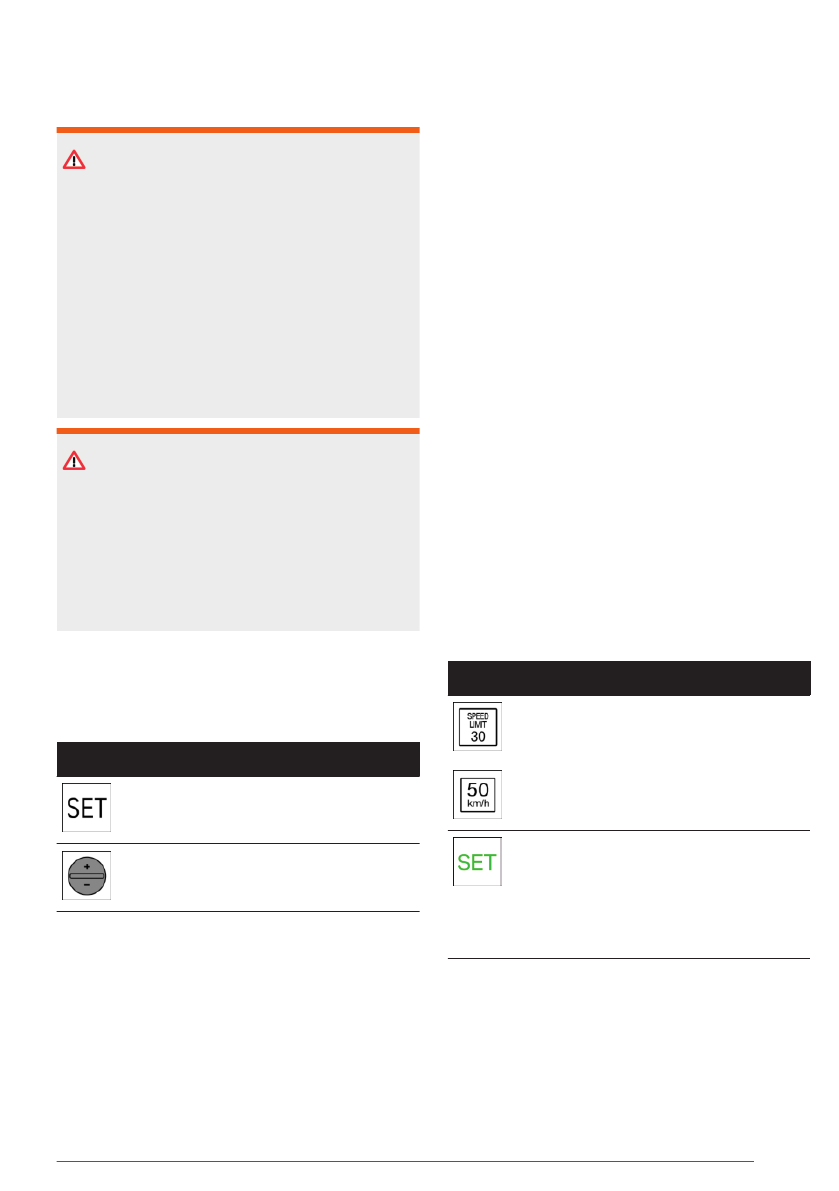
Displays in the instrument cluster
A message is displayed on the instrument
cluster when Speed Limit Assistant and a
speed control system are activated.
Icon
Function
Detected change of a speed limit with
immediate
effect.
Depending on the national-market
version, it is possible to switch be-
tween the units of measurement.
Indicator light illuminates green: the
detected speed limit can be applied
with the SET
button.
After it has been applied, a green
checkmark is displayed.
Automatic adoption
"Adjust automatically": Distance Control auto-
matically adopts any detected speed limits
when driving on roads with barriers separating
traffic in opposing directions.
Driver assistance systems
Controls
243
Online Edition

Safety information
WARNING
The system cannot serve as a substitute for
the driver’s personal judgment in assessing
the traffic situation. Based on the limits of
the system, it cannot independently react to
all traffic situations. There is a risk of acci-
dent, injury, and property damage. Adjust
driving style to traffic conditions. Watch the
surrounding traffic situation closely, be ready
to take over steering and braking at any time,
and actively intervene where appropriate.
The Cruise Control, Distance Control, Assisted
Driving Mode, and Speed Limit Assistant alerts
also apply.
Additional
information:
▷
.
▷
Distance Control, refer to page
▷
Assisted Driving Mode, refer to page
▷
Speed Limit Assistant, refer to page
.
Functional requirements
To adapt the vehicle speed to the route, the
following functional requirements must be met:
▷
Cruise Control and Distance Control are ac-
tivated.
▷
Driving on a highway or highway-like road.
▷
Guidance is activated in the navigation sys-
tem.
The use of
navigation software via Apple
CarPlay or Android Auto may lead to func-
tional limitations, for instance deviations
with navigation instructions.
▷
The function must be available in the coun-
try in which the vehicle is driven.
▷
If your vehicle is equipped with a trailer
hitch, you must set on the control display
that you are using a trailer or rear carrier,
respectively.
Additional information:
Driving with trailer or rear carrier, refer to
Adapting speed automatically to
route
To activate/deactivate automatic speed ad-
justment, go through the menu as follows:
Apps menu / "Vehicle" / "Driving settings" /
"Driver Assistance" / "Driving" / "Route
control" / "Adjust speed automatically".
Adjusting the cornering speed
The cornering speed can be adjusted depend-
ing on national-market version.
1.
Go through the menu as follows: Apps
menu / "Vehicle" / "Driving settings" /
"Driver Assistance" / "Driving" / "Route
control" / "Cornering speed".
2.
Select the desired setting.
Displays in the instrument cluster
Depending on vehicle equipment and national-
market version, in Assisted View, Route-Ahead
Assistant information is displayed on the cen-
tral display range of the
instrument cluster.
Additional information:
Assisted View, refer to page
.
System limits
Depending on national-market version or the
country in which the vehicle is currently being
driven, the Route-Ahead Assistant may not be
available.
The system
does not react or reacts to a lim-
ited extent to the route ahead in the following
situations:
▷
If the vehicle location cannot be clearly de-
termined by the navigation system.
▷
On wintry roads.
Additionally, the limits for Cruise Control, Dis-
tance Control, Assisted Driving, and Speed
Limit Assistant systems apply.
Driver assistance systems
Controls
245
Online Edition


