

BMW iDrive
Vehicle features and options
This chapter describes model-specific equip-
ment, systems, and functions that are currently
available, or may become available in the fu-
ture, even if they are not
present in the vehicle.
Additional information:
Vehicle equipment, refer to page
.
Display and operating con-
cept
Principle
BMW iDrive is the vehicle’s display and operat-
ing concept and includes a wide range of func-
tions. Using BMW iDrive, for example, letters
and numbers can be entered when setting a
destination, and functions can be activated or
deactivated.
Depending on
vehicle equipment, the functions
can be operated as follows:
▷
Via the control display.
▷
Via the BMW Intelligent Personal Assistant.
▷
Using the operating elements in the vehicle.
Additional
information:
Instrument cluster, refer to page
.
Safety information
WARNING
Operating the integrated information systems
and communication devices while driving can
distract from surrounding traffic. It is possible
to lose control of the vehicle. There is a risk of
accident, injury, and property damage. Only
use the systems or devices when the traffic
situation allows. As warranted, stop and use
the systems and devices while the vehicle is
stationary.
Input and display
Entering letters and numbers
Letters and numbers can be entered, e.g.,
when inputting
destinations.
Letters and numbers can be entered using the
control display or voice control.
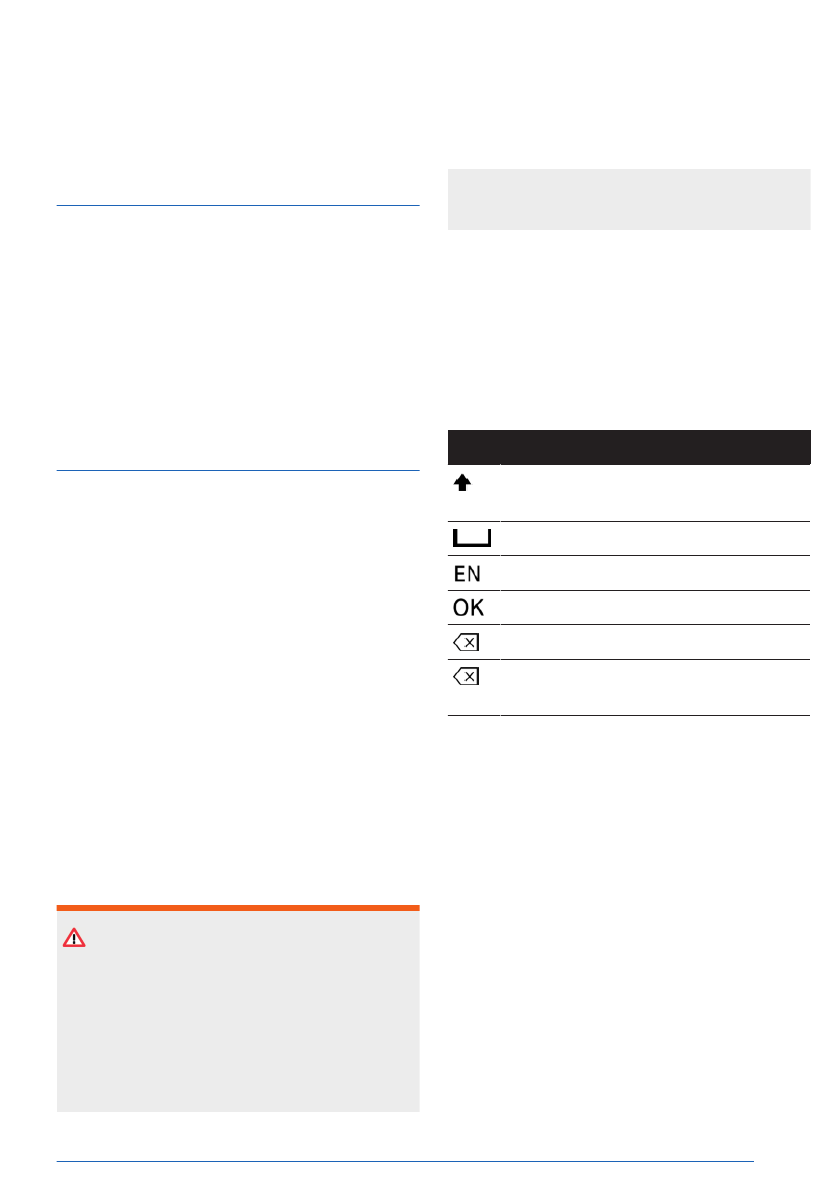
Icon Function
Change between capital and lower-
case letters.
Enter a blank space.
Switching between languages.
Confirm entry.
Tap icon: delete a letter or number.
Press and hold the icon: delete all let-
ters or numbers.
Entry comparison
When entering data from a database such as
contacts, the selection is gradually narrowed
down for each character entered, with charac-
ters being added as necessary.
Activating/deactivating the functions
Some menu items are preceded by an icon. To
activate or deactivate the function, select the
menu item.
BMW iDrive
Controls
43
Online Edition
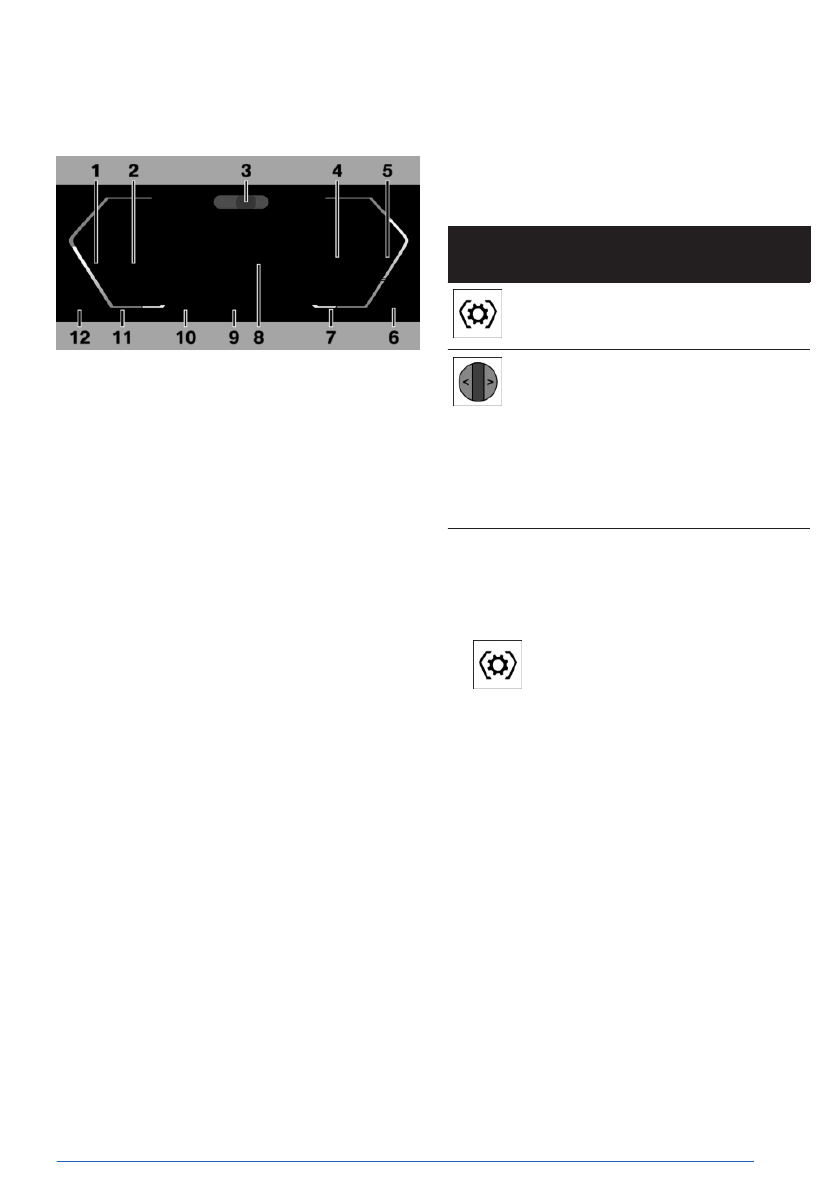
Display ranges on the instrument
cluster
1
Speedometer
2
Driver assistance systems
Parking assistance systems
3
4
Check Control
Selector lever display
Gear shift indicator
Selection lists
Efficiency trainer
5
Power gauge
6
7
8
Shift lights
9
10
11
Time
12
Fuel gauge
Range
The positions of some displays may vary,
e.g., the selector lever
display.
Some of the displays in the instrument cluster
may differ from the illustrations in the Owner's
Manual.
Additional
information:
Indicator lights and warning lights, refer to
Operating elements on the steering
wheel
Operating
element
Function
Display the menu bar on the in-
strument cluster.
Turn thumbwheel: scroll selec-
tion up or down.
Tilt
thumbwheel in correspond-
ing direction: Move selection to
left or right.
Press
thumbwheel: confirm se-
lection.
Configuring the layout
The layout of the instrument cluster adapts to
the respective driving mode.
1.
Press the Settings button on the
steering wheel.
A menu
bar is displayed in the instrument
cluster.
2.
"LAYOUT"
Select
the menu by tilting the thumbwheel
on the steering wheel where applicable.
3.
Select the desired setting using the thumb-
wheel on the steering wheel.
Settings
Specific displays can be configured individu-
ally, e.g., a second actual speed.
1.
Go through the menu as follows: Apps
menu / "Vehicle" / "Displays" / "Instrument
cluster".
2.
Select the desired setting.
BMW iDrive
Controls
45
Online Edition

The control display can also be switched off
manually.
1.
Swipe from top to bottom on the control
display.
2.
"Control display off"
Tap the control display to turn it on again.
Main menu
General information
The main menu on the control display is div-
ided into different areas.
Overview
1
Widgets
2
Status information
3
Temperature setting
4
Menu bar
Menu bar
General information
The menu bar may not be displayed when us-
ing third-party apps. To display the menu bar
again, swipe up from the lower edge of the
control display or press a button.
Main menu
The main menu can be opened from any
menu.
Climate menu
The Climate menu provides access to all
climate control functions.
Apps menu
The Apps menu provides access to all apps
and vehicle functions. You can use a filter to
make it easier to find a specific app. The last
selected filter is stored. To display the desired
app, change the filter as necessary.
Apple CarPlay©
The Apple CarPlay menu is displayed in
the main menu depending on national-market
version and connected function. Apple CarPlay
enables the secure use of certain functions of a
compatible Apple iPhone via iDrive.
Android Auto©
The Android Auto menu is displayed in
the main menu, depending on national-market
version and associated function. Android Auto
enables the secure use of certain functions of a
compatible Android smartphone via iDrive.
Widgets
The widgets provide real-time information and
dynamic content, e.g., the navigation map.
Widgets also serve as buttons and allow you to
jump to the respective menu or most important
functions.
Status information
General information
Status information is displayed at the top of
the control display in the form of icons. De-
pending on the equipment and national-mar-
ket version, different icons are available.
BMW iDrive
Controls
47
Online Edition

Shortcuts can only be created with an active
BMW ID or a driver profile.
Saving shortcuts
1.
To save shortcuts, press and hold the de-
sired function.
2.
"Add to shortcuts"
Shortcuts can also be saved directly via the
quick link.
Selecting shortcuts
1.
To select shortcuts, swipe from top to bot-
tom on the control display.
2.
Select the desired shortcut.
This is done immediately, e.g., the connection
is established as soon as a phone number is
selected.
Sorting shortcuts
1.
To sort shortcuts, swipe from top to bottom
on the control display.
2.
Press and hold the desired shortcut and
move it to the desired position.
Deleting shortcuts
1.
To delete shortcuts, swipe from top to bot-
tom on the control display.
2.
Press and hold the desired shortcut.
3.
Tap the delete icon for the desired short-
cut.
Settings
Setting the brightness
1.
To adjust the brightness of the control dis-
play, go through the menu as follows: Apps
menu / "Vehicle" / "Displays" / "Cockpit
brightness" / "Control display brightness at
night".
2.
Select the desired setting.
Depending on the light conditions, the bright-
ness control may not be clearly visible.
Enabling/disabling audible feedback
1.
To enable/disable audio confirmation
for the control display, go through
the menu as follows: Apps menu /
"Sound" / "Touchscreen".
2.
Select the desired setting.
System limits
In the case of very high temperatures on the
control display, for instance due to intense so-
lar radiation, the brightness may be reduced
down to complete deactivation. Once the
temperature is reduced, for instance through
shade or air conditioning, the normal functions
are restored.
Operation via control display
Principle
The control display is equipped with a touch-
screen.
You can tap on
menu items and widgets.
Touch the control display with your fingers, do
not use any objects.
Sorting apps
1.
To sort apps, bring up the Apps menu.
2.
Press and hold the desired app icon and
move it to the desired position.
Calling up the context menu
Depending on the menu item, a context menu
with additional options can
be displayed.
To bring up the Context menu, press and hold
the desired menu
item.
The menu consists of various areas, for in-
stance:
▷
"General help": the Integrated Owner's
Manual opens.
▷
"Add to shortcuts": the menu item is de-
fined as a shortcut.
BMW iDrive
Controls
49
Online Edition

Functional requirements
To use the Personal Assistant, the following
functional requirements must be met:
▷
A language that is supported by the Per-
sonal Assistant must be set via iDrive.
▷
Download the corresponding language
package before using the Personal Assis-
tant for the first time.
▷
Commands must always be spoken in the
selected system language.
For the full range of functions, you must acti-
vate or purchase the following functions:
▷
Online speech processing is enabled.
▷
All settings under Data privacy are enabled.
▷
The activation word is enabled.
▷
Suggestions are activated.
▷
A BMW ID or driver profile is activated.
▷
Corresponding ConnectedDrive services
are purchased in the ConnectedDrive Store.
▷
The BMW Digital Premium subscription has
been purchased.
Additional information:
▷
Setting the system language, refer to
page
▷
Online speech processing, refer to
page
.
▷
Data protection, refer to page
.
▷
Activation word, refer to page
.
▷
Get suggestions, refer to page
Activating the voice control system
General information
You can activate voice control as follows:
▷
Press the microphone button on the
steering wheel.
▷
Say the activation word.
Microphone button on steering wheel
1.
To activate voice control with the
microphone button, press the voice control
button on the steering
wheel.
The microphone on the driver's side is ac-
tive.
2.
Say the desired command.
Activation word
Principle
Saying the activation word will start the
Personal Assistant: ›Hello BMW‹. The micro-
phones on the driver's or front passenger's
side remain on during the subsequent voice di-
alog, depending on where the activation word
was spoken.
Then say the
command. The activation word
and the command can be spoken without
pause in one sentence.
Enabling/disabling the activation word
The activation word can be enabled and disa-
bled.
Go through the
menu as follows: Apps menu /
"All" / "Personal Assistant" / "Settings" /
"General" / "Activation with voice control".
Activation word from third-party providers
Depending on the national-market version,
some third-party providers provide digital voice
assistants such as Siri or
Amazon Alexa.
To use Siri, the smartphone must be con-
nected via Apple
CarPlay.
Supported voice assistants can be used in the
vehicle after you have connected your smart-
phone.
The activation
word for voice assistants from
associated third-party providers can be used
BMW iDrive
Controls
51
Online Edition

Suggestions
The Personal Assistant provides helpful, indi-
vidual suggestions. Suggestions can be ena-
bled or disabled. Suggestions can be custom-
ized, e.g., which categories suggestions are
based on or whether to emit a signal tone.
1.
To configure the settings, go through
the menu as follows: Apps menu /
"All" / "Personal Assistant" / "Settings" /
"Suggestions".
2.
Select the desired setting.
Online speech processing
Online speech processing improves the quality
of the speech recognition and search results
for points of interest. To use the functions,
data is transmitted to a service provider via an
encrypted connection and stored locally there.
Online speech processing is not available in all
languages. Online voice processing can be de-
activated depending on national-market ver-
sion.
Go through the menu
as follows: Apps menu /
"All" / "Personal Assistant" / "Settings" /
"General" / "Online speech processing".
Configuring the visualization
1.
To adjust the visualization of the Personal
Assistant, go through the menu as follows:
Apps menu / "All" / "Personal Assistant" /
"Settings" / "General" / "Visualization".
2.
Select the desired setting.
Voice control from third-party provid-
ers
Depending on vehicle equipment, third-party
voice control can be activated by pressing and
holding the microphone button on the steering
wheel.
1.
Go through the menu as follows: Apps
menu / "Vehicle" / "System settings" /
"Voice control".
2.
Select the desired setting.
Adjusting the volume
Turn the volume button during the voice guid-
ance until the desired volume
is set.
The volume remains constant even if the vol-
ume of other audio sources is changed.
Using the smartphone's voice con-
trol
Depending on the device, a smartphone con-
nected to the vehicle can be used via voice
control.
The device must
be connected via Apple Car-
Play or Android Auto.
1.
Press and hold the voice control
button on the steering wheel for approx.
3 seconds.
The
smartphone's voice control is enabled.
If activation is successful, a confirmation
appears on the control display.
2.
Press the voice control button on
the steering wheel in order to cancel the
smartphone's voice control.
Amazon Alexa Car Integration
Principle
Amazon Alexa Car Integration is available de-
pending on vehicle equipment and national-
market version. Alexa is a digital assistant
from Amazon. With Amazon Alexa Car Integra-
tion, Alexa can be used in the vehicle. For
safety reasons, the use of some Alexa func-
tions may be restricted while driving your vehi-
cle.
Functional requirements
To use Amazon Alexa Car Integration, the fol-
lowing functional requirements must be met:
BMW iDrive
Controls
53
Online Edition

use the systems or devices when the traffic
situation allows. As warranted, stop and use
the systems and devices while the vehicle is
stationary.
BMW iDrive
Controls
55
Online Edition


