

GENERAL INFORMATION
WARNING:
Driving while distracted
can result in loss of vehicle control, crash
and injury. We strongly recommend that
you use extreme caution when using any
device that may take your focus off the
road. Your primary responsibility is the
safe operation of your vehicle. We
recommend against the use of any
hand-held device while driving and
encourage the use of voice-operated
systems when possible. Make sure you
are aware of all applicable local laws
that may affect the use of electronic
devices while driving.
About SYNC
The system allows you to interact with the
entertainment, information and
communication systems on your vehicle
using voice commands and a touchscreen.
The system provides easy interaction with
audio, phone, navigation, mobile apps and
settings.
Note:
You can switch the system on and
use it for up to an hour without switching
the ignition on.
Note:
You can use the system after you
switch the ignition off for up to 10 minutes
or until you open a door.
Note:
For your safety, some features are
speed-dependent. Their use is limited to
when your vehicle speed is less than 3 mph
(5 km/h).
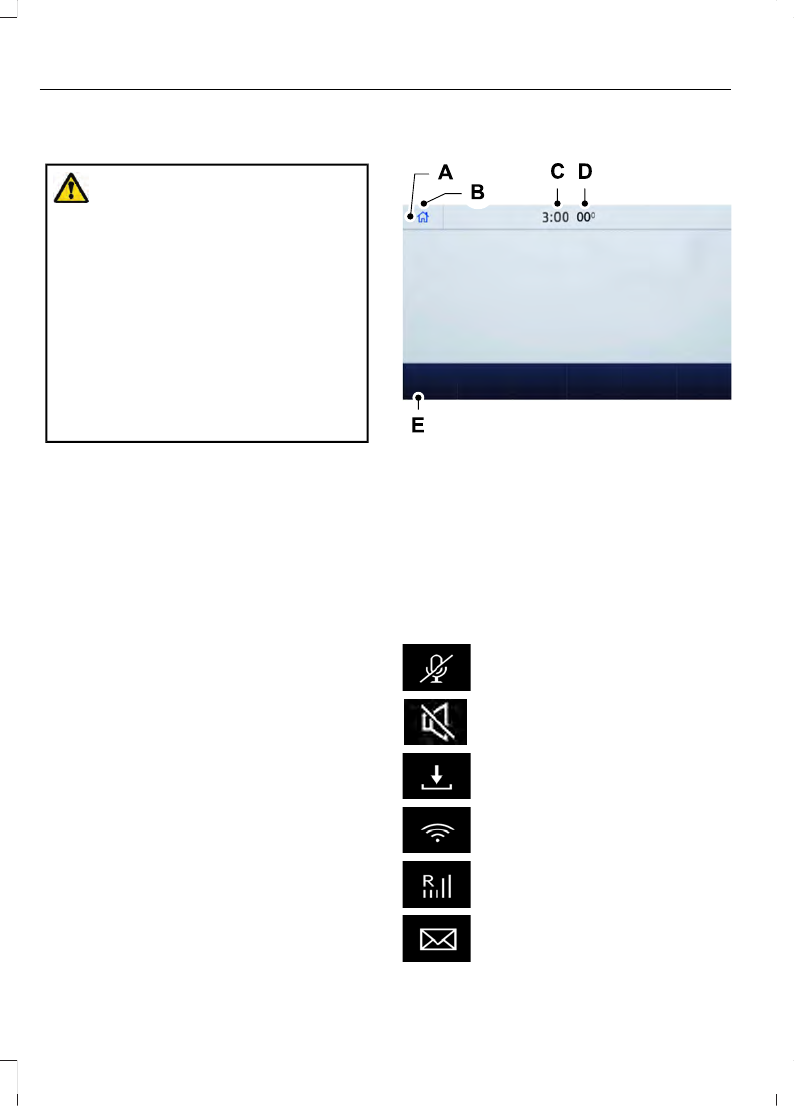
Using the Touchscreen
E293823
Status bar.
A
Home screen.
B
Clock. See
C
Outside air temperature.
D
Feature bar.
E
Status Bar
Cell phone microphone muted.
Audio system muted.
Software update installed.
Wi-Fi connected.
Cell phone roaming.
Text message received.
372
SYNC™ 3
(If Equipped)
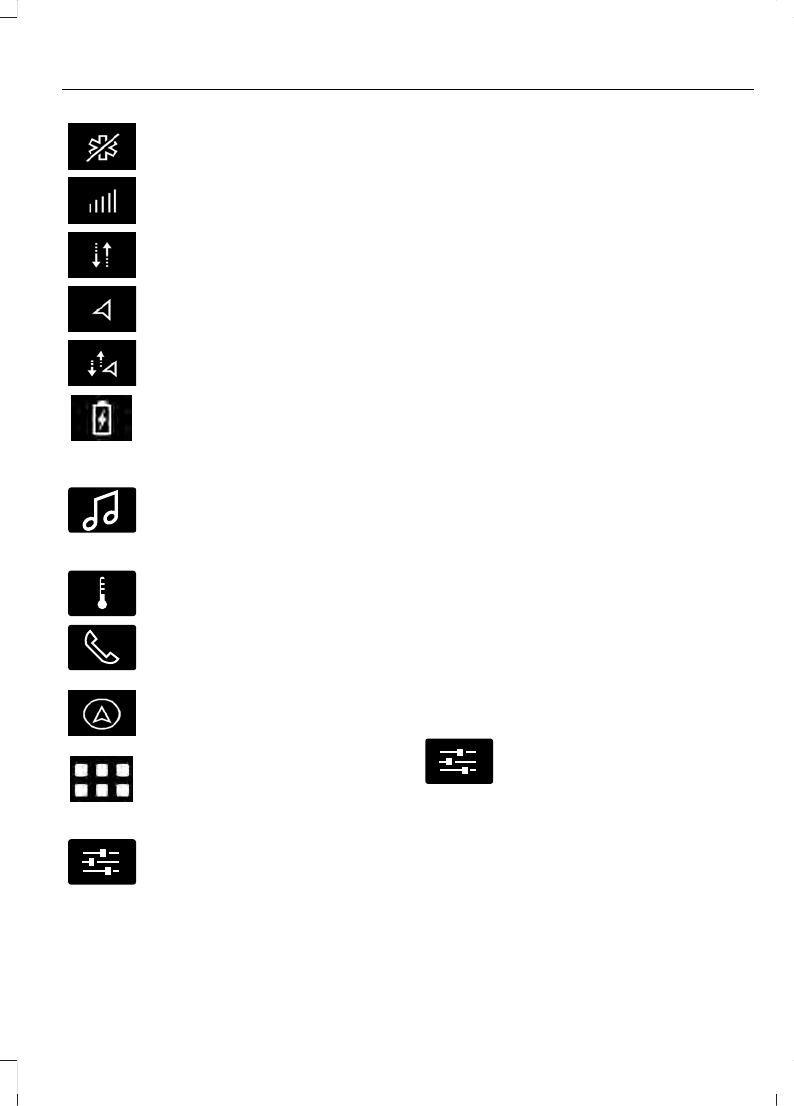
Automatic crash notification
system off.
Cell phone network signal
strength.
Vehicle data sharing on.
Vehicle location sharing on.
Vehicle data and vehicle location
sharing on.
Wireless charger active.
Feature Bar
E100027
Select to use the radio, a USB, a
media player or a Bluetooth
device. See
E283811
Select to adjust climate settings
See
Select to make calls and access
the phonebook on your cell
phone. See
Select to use the navigation
system. See
Select to search for and use
compatible apps on your iOS or
Android device. See
E280315
Select to adjust system settings.
See
Cleaning the Touchscreen
Updating the System
Updating the System Using a USB Drive
Downloading an Update
1.
Go to the SYNC update page on the
local Ford website.
2. Download the update.
Note:
The website notifies you if an update
is available.
3. Insert a USB drive into your computer.
Note:
The USB drive needs to be empty and
meet the minimum requirements detailed
on the website.
4. Follow the instructions provided to
download the update to the USB drive.
Installing an Update
Note:
You can use the system when an
installation is in progress.
1.
Disconnect all other USB devices from
the USB ports.
2. Connect the USB drive with the update
to a USB port.
Note:
Installation starts automatically
within 10 minutes.
Updating the System Using a Wi-Fi
Network Connection
Connecting to a Wi-Fi Network
E280315
Select the settings option on the
feature bar.
1.
Select
Automatic Updates
.
2. Select
System Wi-Fi
.
3. Switch
System Wi-Fi
on.
4. Select
Available Wi-Fi Networks
.
5. Select an available Wi-Fi network.
Note:
Enter the network password to
connect to a secure network.
373
SYNC™ 3
(If Equipped)
Switching Automatic System Updates
On
E280315
Select the settings option on the
feature bar.
1.
Select
Automatic Updates
.
2. Switch
Automatic System Updates
on.
The system is now set to check for and
receive system updates when it is
connected to a Wi-Fi network.
Note:
You can use the system when a
download is in progress.
Note:
If the system is disconnected from
the Wi-Fi network when a download is in
progress, the download continues the next
time the system is connected to a Wi-Fi
network.
Additional Information and
Assistance
For additional information and assistance,
we recommend that you contact an
authorized dealer or refer to the local Ford
website.
USING VOICE RECOGNITION
The system allows you to interact with the
entertainment, information and
communication systems on your vehicle
using voice commands. This allows you
to keep your hands on the steering wheel
and focus on what is in front of you.
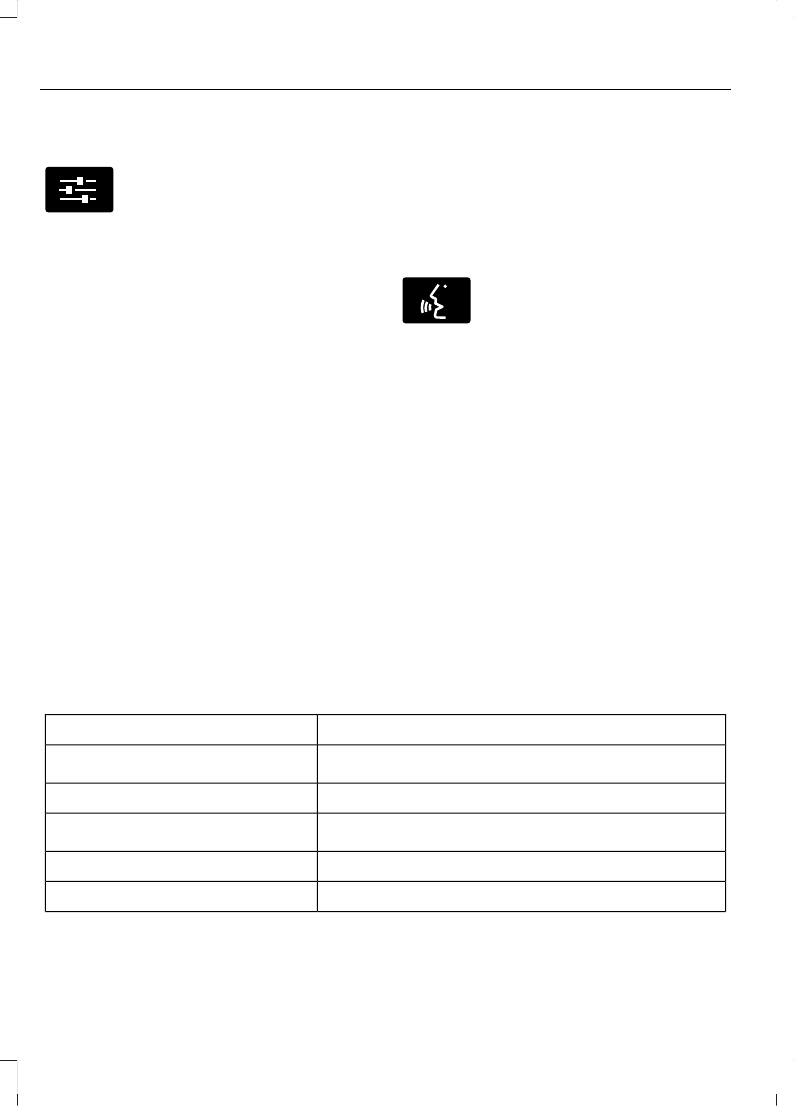
E142599
Press the voice control button
on the steering wheel and wait
for the voice prompt.
Note:
Press the voice control button again
to interrupt a voice prompt and begin
speaking.
Note:
Turn the volume control when a voice
prompt plays to adjust the volume.
Note:
Press and hold the voice control
button on the steering wheel to use Siri on
your iOS device.
The following voice commands are
designed to help you from any screen:
•
List of Commands
•
Help
The following tables list some of the more
frequently used voice commands. For a
complete list of voice commands, refer to
our website.
General
Description
Voice Command
Get a list of voice commands for a specific feature.
1
___ List of Commands
Cancel an active voice session.
Cancel
Get a list of voice commands for a specific feature.
1
___ Help
Return to the previous screen.
Go back
Go to the main menu.
Main Menu
374
SYNC™ 3
(If Equipped)
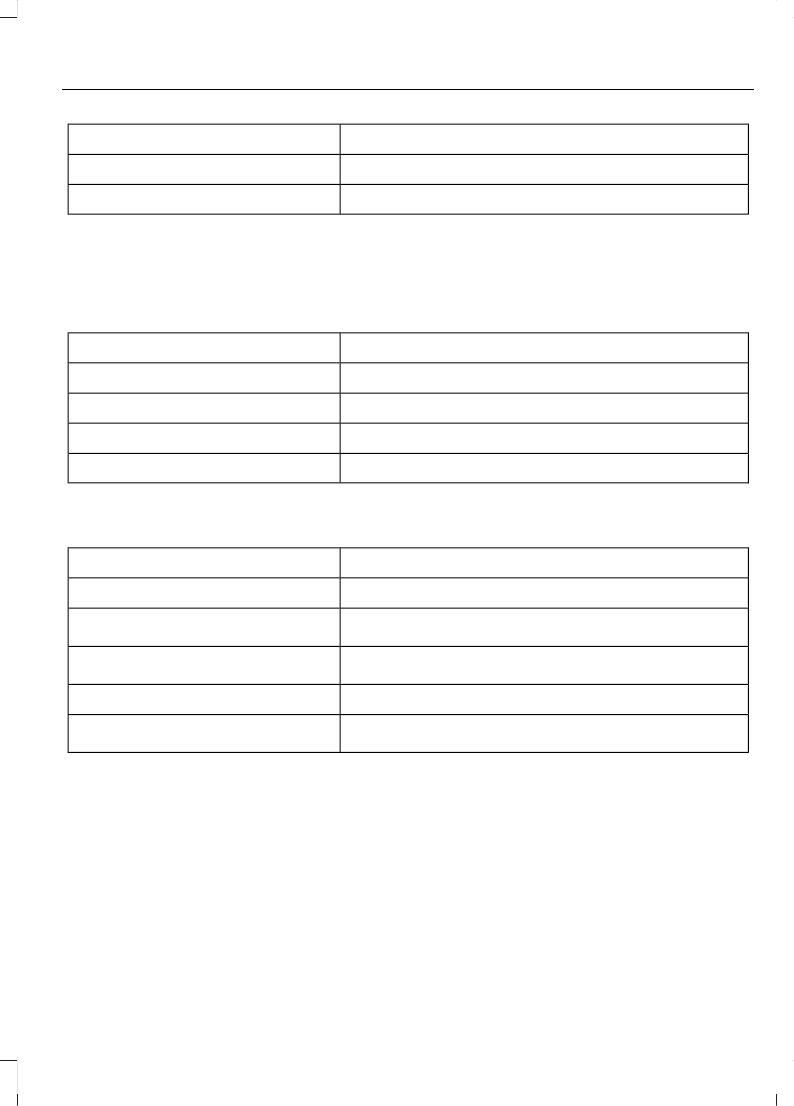
Description
Voice Command
Go to the next page.
Next Page
Go to the previous page.
Previous Page
1
Add the name of the feature to the command.
Entertainment
Audio Source
Description
Voice Command
Use the radio.
Radio
Use the CD player.
CD Player
Use a Bluetooth device.
Bluetooth Stereo
Use a USB or media player.
USB
Radio
Description
Voice Command
Listen to AM radio.
AM
Tune to a specific AM frequency.
1
AM ___
Listen to SiriusXM radio.
2
Sirius Channel ___
Listen to FM radio.
FM
Tune to a specific FM frequency.
1
FM ___
1
Add the radio frequency to two decimal places to the command.
2
You can say the Sirius channel name or number such as "Sirius Channel 16" or "Sirius
The Pulse".
375
SYNC™ 3
(If Equipped)
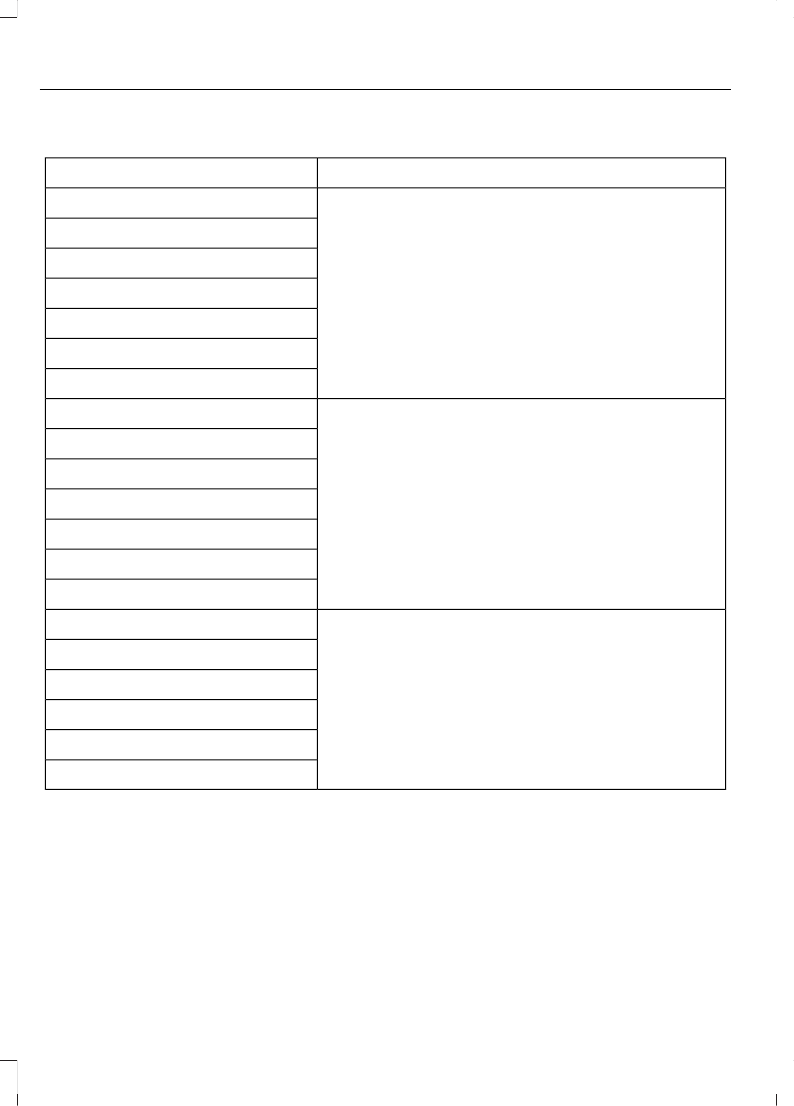
USB and Media Player
Description
Voice Command
Play your music by category.
1
Play Album ___
Play Artist ___
Play Genre ___
Play Playlist ___
Play Song ___
Play Audiobook ___
Play Podcast ___
Browse music on a USB device.
Browse All Albums
Browse All Artists
Browse All Audiobooks
Browse All Genres
Browse All Playlists
Browse All Podcasts
Browse All Songs
Browse your music by category on a USB device.
1
Browse Album ___
Browse Artist ___
Browse Audiobook ___
Browse Genre ___
Browse Playlist ___
Browse Podcast ___
1
Add an album name, artist name, audiobook name, genre name, playlist name, podcast
name or track name to the command. Say the name exactly as it appears on your device.
Climate
(If Equipped)
You can control the temperature of the
vehicle using voice commands.
___ is a dynamic listing, meaning that for
climate voice commands it can be the
desired degrees for the temperature
setting.
376
SYNC™ 3
(If Equipped)
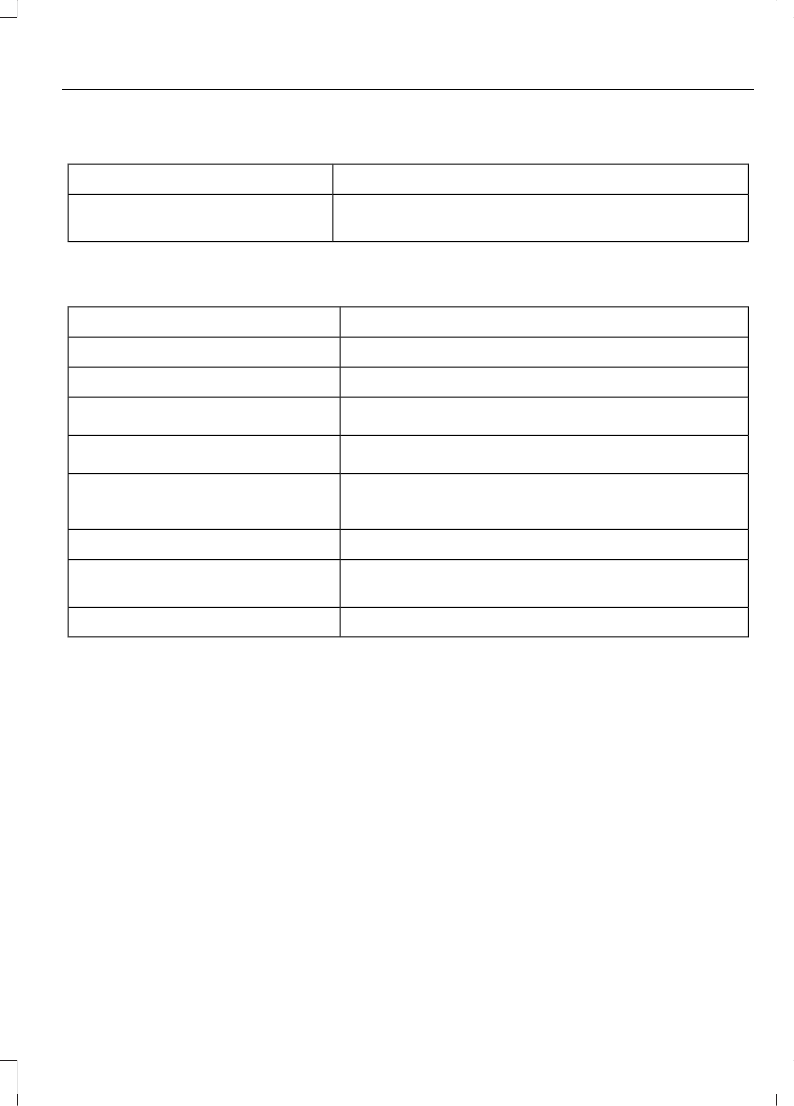
To adjust the temperature, say:
Description
Voice command
Adjust the temperature between 60–85°F
(15.5–29.5°C).
Set Temperature ___
Phone
Description
Voice Command
Pair a cell phone or Bluetooth enabled device.
Pair Phone
Redial the last number that you dialed.
Redial
Dial a number.
1
Dial ___
Call a specific contact from your phonebook.
2
Call ___
Call a specific contact from your phonebook at a
specific location.
3
Call ___ ___
Listen to a text message.
Listen to Message
Listen to a specific text message from a list of text
messages.
Listen to Message ___
Reply to the last text message.
Reply to Message
1
Add the number you want to dial to the command.
2
Add a contact name from your phonebook to the command. Say the first and last name
of your contact exactly as it appears on your device.
3
Add a contact name and location from your phonebook to the command. Say the first
and last name of your contact exactly as it appears on your device.
377
SYNC™ 3
(If Equipped)
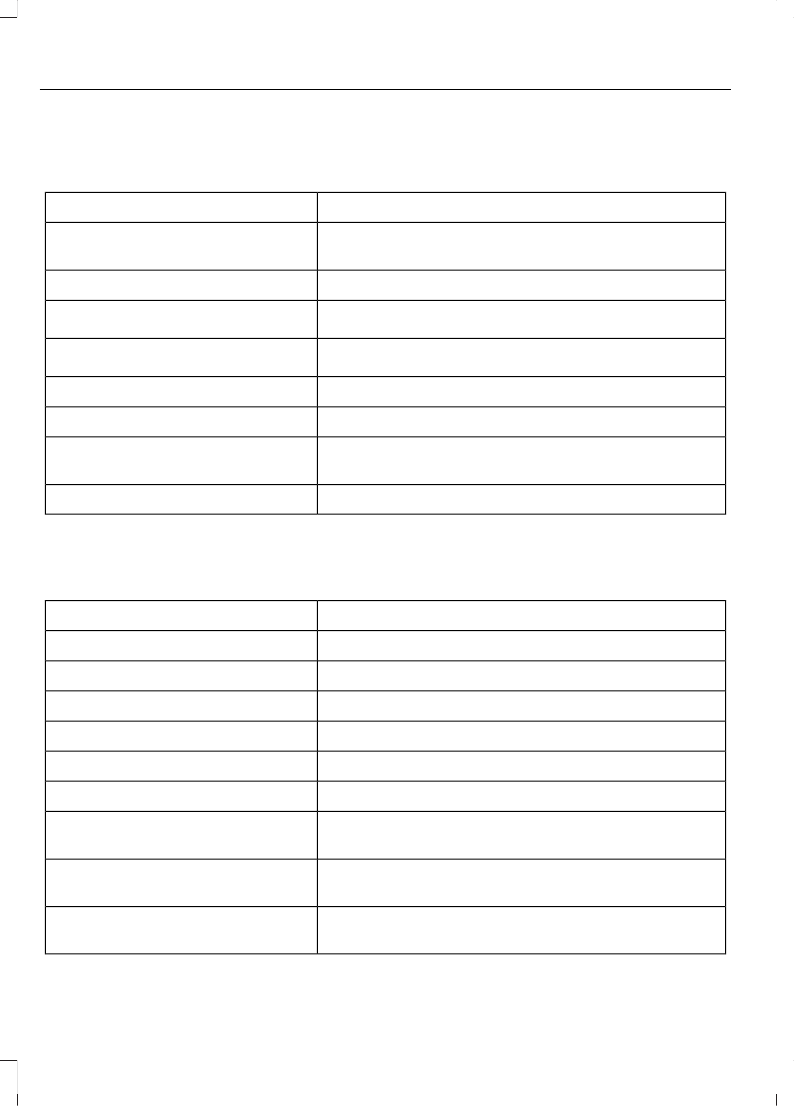
Navigation
(If Equipped)
Setting a Destination
Description
Voice Command
Enter a destination address. When prompted,
provide the house number, the street and city.
Find an Address
Search for a point of interest by name or by category.
Find a Place
Search for a nearby point of interest by category.
1
Find the Next ___
Search for a point of interest category.
1
Find a POI Category
Set your saved home address as your destination.
Drive Home
Set your saved place of work as your destination.
Drive to Work
Display and select from a list of previous destina-
tions.
Show Previous Destinations
Display and select from a list of favorite destinations.
Show Favorites
1
Add a point of interest category or the name of a major brand or chain to the command.
Route Guidance
Description
Voice Command
Cancel the current route.
Cancel Route
Select an alternate route.
Detour
Repeat the last guidance prompt.
Repeat Instruction
Display an overview of the route.
Show Route
Display a list of traffic events on your route.
Show Traffic
Display the map on the touchscreen.
Show Map
Display a two-dimensional map with north toward
the top of the touchscreen.
North Up
Display a two-dimensional map with the direction
you are traveling toward the top of the touchscreen.
Heading Up
Display a three-dimensional map with the direction
you are traveling toward the front.
Show 3D
378
SYNC™ 3
(If Equipped)
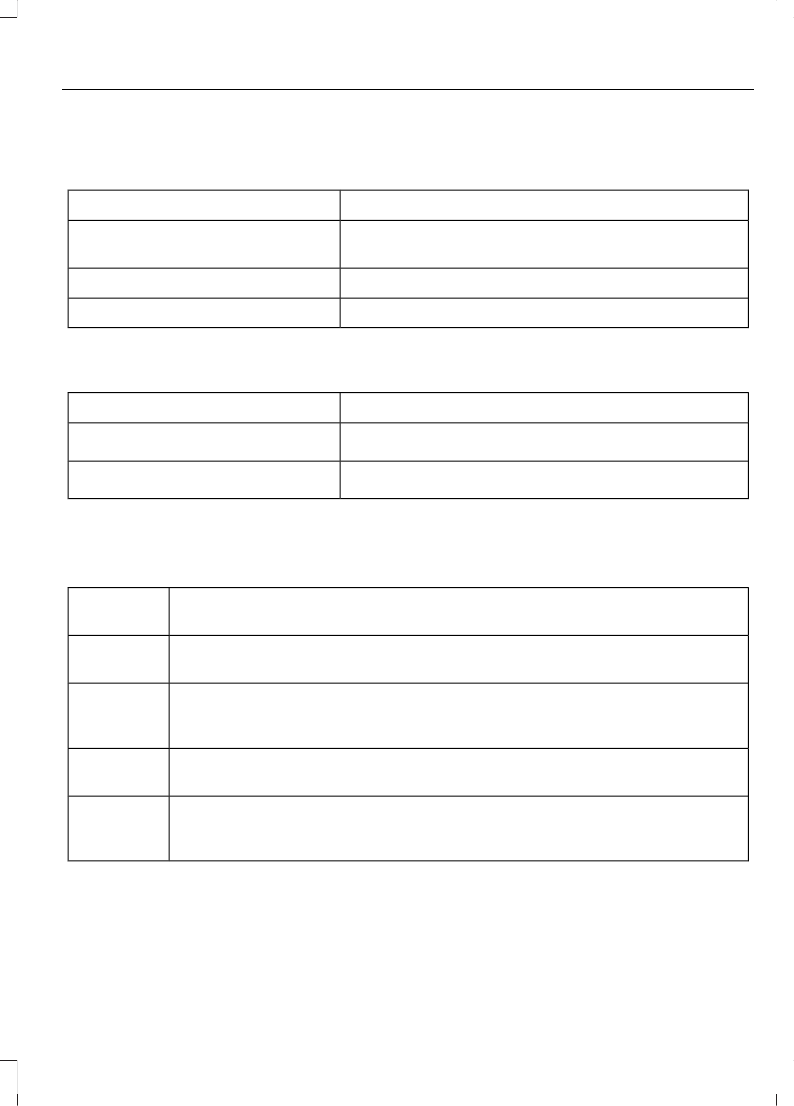
Apps
General
Description
Voice Command
Start an app. The system prompts you for the app
name.
Mobile Applications
Get a list of apps running on your device.
List Applications
Search and connect to apps running on your device.
Find Applications
Active App
Description
Voice Command
Get a list of voice commands for a specific app.
1
___ Help
Close an app.
1
Exit ___
1
Add an app name to the command.
SiriusXM Traffic and Travel Link
(If Equipped)
Description
Voice
command
Displays a list of traffic incidents.
Show
Traffic
Displays the current weather map.
Show
Weather
Map
Displays a list of fuel prices.
Show Fuel
Prices
Displays the 5 day weather forecast.
Show 5
Day Fore-
cast
379
SYNC™ 3
(If Equipped)
Voice Settings
Description
Voice Command
Go to the voice settings menu.
Voice Settings
Switch long voice prompts on.
Interaction Mode Novice
Switch short voice prompts on.
Interaction Mode Advanced
Switch call confirmation on. The system prompts
you to confirm before making a call.
Phone Confirmation On
Switch call confirmation off. The system does not
prompt you to confirm before making a call.
Phone Confirmation Off
Switch the display of voice commands on.
Voice Command Lists On
Switch the display of voice commands off.
Voice Command Lists Off
Automatic Blower Motor Speed
Reduction
If necessary, the system decreases the
blower motor speed when you are using
voice commands to reduce the amount of
background noise in your vehicle. It returns
to normal when you are done.
Switching Automatic Blower Motor
Speed Reduction Off
Simultaneously press the
A/C
and
recirculated air buttons.
ENTERTAINMENT
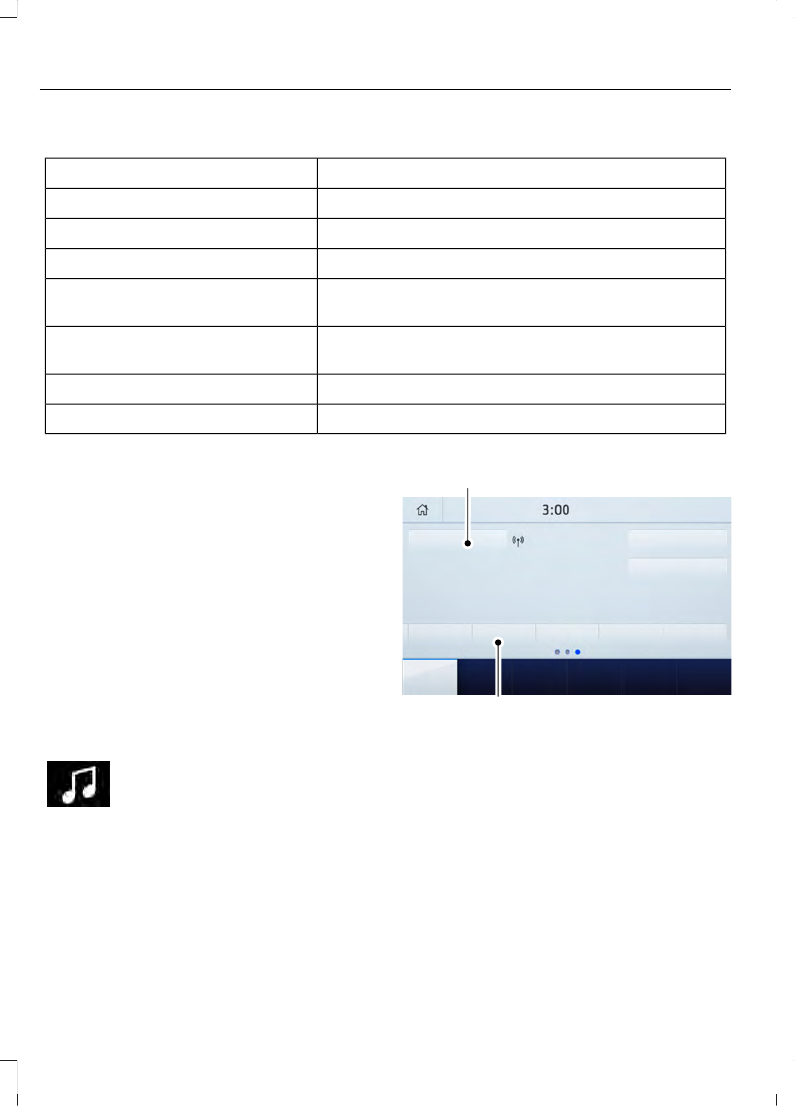
Select the entertainment option
on the feature bar.
A
B
E293491
Audio source. Select to choose
a different audio source.
A
Presets. Swipe left to view more
presets.
B
You can access these options using the
touchscreen or voice commands.
380
SYNC™ 3
(If Equipped)
Using the Radio
Setting a Radio Station Using the
Touchscreen
Directly Tuning a Radio Station
Select
Sources
.
Select
AM
or
FM
.
Select
Frequency
.
Enter the frequency of the radio station
and select
Enter
.
Note:
You must enter the frequency to two
decimal places.
Selecting a Radio Station From a List
Select
Sources
.
Select
FM
or
DAB
.
Select
Station
.
Select a radio station from the list.
Switching Traffic Announcements On
Select
Traffic (TA)
.
Note:
If you switch traffic announcements
on, traffic announcements broadcast by
radio stations interrupt the current audio
source to help you plan your route.
Storing a Radio Station
You can use the different sets of presets
to allow different drivers to store their
favorite radio stations.
Set a radio station.
Select
Presets
.
Note:
Only do this if you wish to select a
different set of presets.
Press and hold one of the preset buttons.
Note:
The radio briefly mutes to indicate
the radio station has been stored.
Streaming Music From a Bluetooth
Device
Check the compatibility of your device on
the regional Ford website.
Pair your device. See
Select
Sources
.
Select Bluetooth.
Searching for Tracks on a Bluetooth
Device
Select
Browse
.
Select a track.
Note:
Select the cover art to view
information about the current track.
Repeating Tracks on a Bluetooth
Device
Select the repeat icon to repeat
tracks.
Note:
You can repeat one track or all tracks
on an audio format Bluetooth device. You
can repeat one track, all tracks or all tracks
in one folder on a Bluetooth device.
Note:
A small number one appears next to
the repeat icon to indicate that a track is set
to repeat. A small folder icon appears next
to it to indicate that a folder is set to repeat
Playing Tracks on a Bluetooth Device
in a Random Order
Select to play tracks in a random
order.
Playing Music From a USB or Media
Player
Connect your device to a USB port.
Select
Sources
.
381
SYNC™ 3
(If Equipped)
Select USB.
Note:
The system indexes your music
before you can play it.
Searching for Tracks on a USB or Media
Player
Select
Browse
.
Select a track.
Note:
Select the cover art to view
information about the current track.
Note:
You can also browse by album, artist,
audiobook, genre, playlist, podcast or track
name.
Repeating Tracks on a USB or Media
Player
Select the repeat icon to repeat
tracks.
Note:
You can repeat one track or all tracks
on an audio format USB or media player.
You can repeat one track, all tracks or all
tracks in one folder on a USB or media
player.
Note:
A small number one appears next to
the repeat icon to indicate that a track is set
to repeat. A small folder icon appears next
to it to indicate that a folder is set to repeat
Supported Devices
The system supports most USB and media
players, including iOS and Android devices.
Supported File Formats
The system supports the following file
formats:
•
MP3, MP4, WMA, WAV, AAC, AIFF, APE,
DSD, and FLAC audio file formats.
•
MP3, WMA, WAV, M4A, M4B, AAC, and
FLAC file extensions.
•
FAT, exFAT, and NTFS file systems.
Audio File Metadata
The system organizes files on your USB or
media player by metadata tags. Metadata
tags contain information about the file. If
the metadata tags for the files on your USB
or media player contain no information,
the system classifies them as unknown.
The system can index up to 50000 tracks
on a USB device or media player, and up
to 10 devices.
CLIMATE
Touch the climate button on the
touchscreen to access your climate control
features.
Note:
You can switch temperature units
between Fahrenheit and Celsius. See
Accessing the Climate Control
Menu
E265038
Touch the button to access
additional controls for the front
climate system.
Directing the Airflow
Touch the button to direct
airflow to the windshield air
vents and de-mister.
E244097
Touch the button to direct
airflow to the instrument panel
air vents.
Touch the button to direct
airflow to the footwell air vents.
You can direct air through any combination
of these air vents.
382
SYNC™ 3
(If Equipped)
Setting the Blower Motor Speed
Touch up or down to increase or
decrease the volume of air that
circulates in your vehicle.
Setting the Temperature
Touch up or down on the left-hand
temperature control to set the left-hand
temperature.
Note:
This control also adjusts the
right-hand side temperature when you
switch off dual zone mode.
Touch up or down on the right-hand
temperature control to set the right-hand
temperature.
Switching Auto Mode On and Off
Touch the button to switch on
automatic operation, then set
the temperature.
The system adjusts the blower motor
speed, air distribution, air conditioning
operation, and outside or recirculated air
to reach and maintain the temperature you
have set.
Switching the Air Conditioning On
and Off
A pop-up appears on the screen
to display the air conditioning
options.
MAX A/C:
Touch the button to activate
and maximize cooling. The driver and
passenger temperatures are set to LO,
recirculated air flows through the
instrument panel vents, air conditioning
automatically turns on and the fan
automatically adjusts to the highest speed.
A/C:
Touch to switch the air conditioning
on or off. Use A/C with recirculated air to
improve cooling performance and
efficiency.
Note:
In certain conditions, such as
maximum defrost, the air conditioning
compressor may continue to operate even
though you switch off the air conditioning.
Switching the Climate Control On
and Off
Touch the button.
Switching the Climate Controlled
Seats On and Off
E265282
Touch the button to cycle
through the various climate
controlled seat settings.
Switching Dual Zone Mode On and
Off
E265280
Touch the button to switch on
temperature control for the
right-hand side of the vehicle.
Switching the Heated Exterior
Mirrors On and Off
E266189
Touch the button.
Switching the Heated Windshield
On and Off
Touch the button to clear the
windshield of thin ice and fog.
The heated windshield turns off
after a short period of time.
Switching the Heated Rear
Window On and Off
E184884
Touch the button to clear the
rear window of thin ice and fog.
383
SYNC™ 3
(If Equipped)
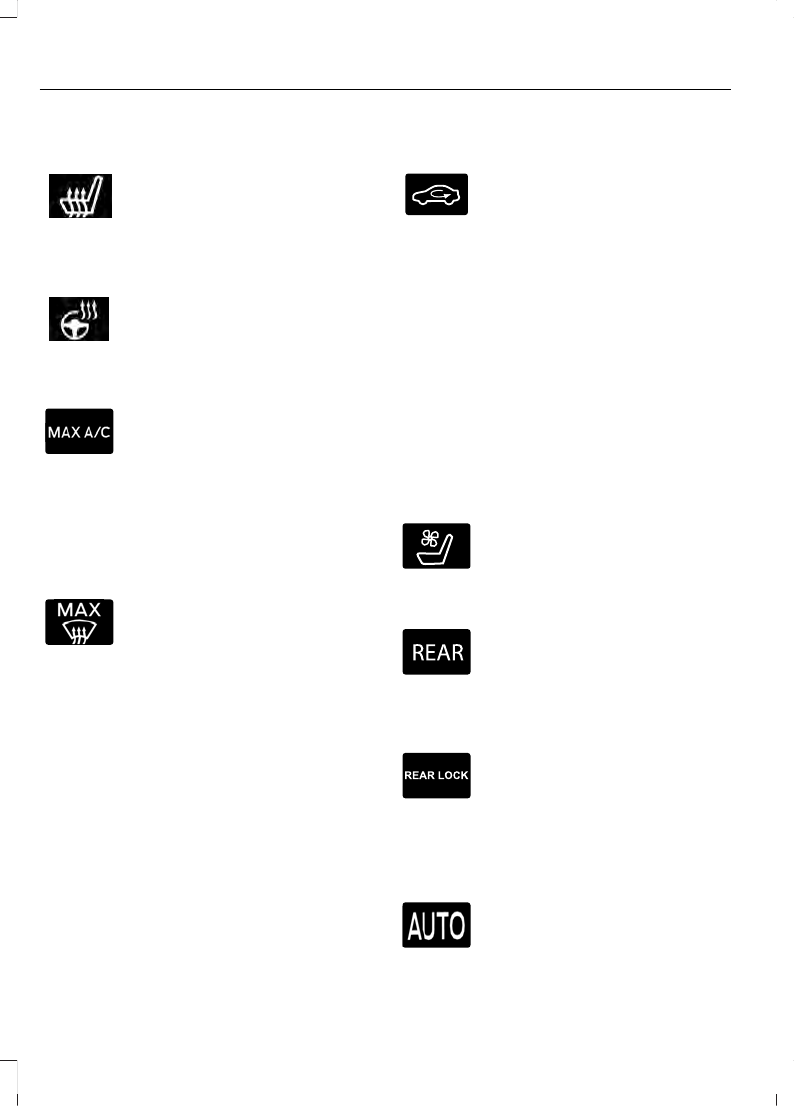
Switching the Heated Seats On
and Off
Touch the button to cycle
through the various heat
settings.
Switching the Heated Steering
Wheel On and Off
Touch the button.
Switching Maximum Air
Conditioning On and Off
Touch the button for maximum
cooling.
Recirculated air flows through the
instrument panel air vents, air conditioning
turns on and the blower motor adjusts to
the highest speed.
Switching Maximum Defrost On
and Off
Touch the button for maximum
defrosting.
Air flows through the windshield air vents,
and the blower motor adjusts to the
highest speed.
You can also use this setting to defog and
clear the windshield of a thin covering of
ice.
Note:
To prevent window fogging, you
cannot select recirculated air when
maximum defrost is on.
Note:
The heated rear window also turns
on when you select maximum defrost.
Switching Recirculated Air On and
Off
Touch the button to switch
between outside air and
recirculated air.
The air currently in the passenger
compartment recirculates. This may
reduce the time needed to cool the interior,
when used with
A/C
, and reduce unwanted
odors from entering your vehicle.
Note:
Recirculated air may turn off, or
prevent you from switching on, in all air flow
modes except
MAX A/C
to reduce the risk
of fogging. Recirculation may also turn on
and off in various air distribution control
combinations during hot weather to improve
cooling efficiency.
Switching the Ventilated Seats On
and Off
E268558
Touch the button to cycle
through the various ventilated
seat settings.
Accessing Rear Climate Controls
E270447
Touch the button to access
additional controls for the rear
climate system.
Rear Climate Control Lock
Indicator
E265289
Touch the button.
When on, you can only operate
the rear passenger settings
through the front controls.
Switching Rear Auto Mode On and
Off
Touch the button to switch on
rear automatic operation, then
set the temperature.
384
SYNC™ 3
(If Equipped)
Switching the Rear Climate
Controlled Seats On and Off
E265282
Touch the button to cycle
through the various climate
controlled seat settings.
Switching the Rear Heated Seats
On and Off
Touch the button to cycle
through the various heat
settings.
Switching the Rear Ventilated
Seats On and Off
E268558
Touch the button to cycle
through the various ventilated
seat settings.
PHONE
WARNING:
Driving while distracted
can result in loss of vehicle control, crash
and injury. We strongly recommend that
you use extreme caution when using any
device that may take your focus off the
road. Your primary responsibility is the
safe operation of your vehicle. We
recommend against the use of any
hand-held device while driving and
encourage the use of voice-operated
systems when possible. Make sure you
are aware of all applicable local laws
that may affect the use of electronic
devices while driving.
Check the compatibility of your device on
the regional website.
Pairing Your Cell Phone for the
First Time
Go to the settings menu on your cell phone
and switch Bluetooth on.
Select the phone option on the
feature bar.
1.
Select
Add Phone
.
Note:
A prompt alerts you to search for your
vehicle on your cell phone.
2. Select your vehicle on your cell phone.
Note:
A number appears on your cell phone
and on the touchscreen.
3. Confirm that the number on your cell
phone matches the number on the
touchscreen.
Note:
The touchscreen indicates that you
have successfully paired your cell phone.
4. Download the phonebook from your
cell phone when you are prompted.
Note:
If you pair more than one cell phone,
use the phone settings to specify the
primary phone. You can change this setting
at any time.
Using Your Cell Phone
Recent Call List
Display and select an entry from a list of
previous calls.
Contacts
Display a smart search form to look up your
contacts. Use the List button to
alphabetically sort your contacts.
Change Phone
Display the list of paired or connected
devices that you can select.
Phone Settings
Change ring tones, alerts or pair another
phone.
Do Not Disturb
Reject incoming calls and switch ring tones
and alerts off.
385
SYNC™ 3
(If Equipped)
Phone Keypad
Directly dial a number.
Mute
Mute the microphone when in a call or
voice recognition session.
Text Messaging
Setting Text Message Notification
iOS
1.
Go to the settings menu on your cell
phone.
2. Select Bluetooth.
3. Select the information icon to the right
of your vehicle.
4. Switch text message notification on.
Android
1.
Go to the settings menu on your cell
phone.
2. Select Bluetooth.
3. Select the profiles option.
4. Select the phone profile.
5. Switch text message notification on.
Using Text Messaging
Description
Menu Item
Hear the text message.
Hear It
View the text message.
View
Call the sender.
Call
Reply to the text message with a standard text message.
Reply
Apple CarPlay
(If Equipped)
1.
Connect your device to a USB port.
2. Follow the instructions on the
touchscreen.
Note:
Certain features of the system are
not available when you are using Apple
CarPlay.
Switching Apple CarPlay Off
Select the settings option on the
feature bar.
1.
Select
Apple CarPlay Preferences
.
2. Switch
Apple CarPlay
off.
Android Auto
(If Equipped)
1.
Connect your device to a USB port.
2. Follow the instructions on the
touchscreen.
Note:
You might need to enable Android
Auto from the settings menu.
Note:
Certain features of the system are
not available when you are using Android
Auto.
Switching Android Auto Off
Select the settings option on the
feature bar.
1.
Select
Android Auto
.
2. Switch
Android Auto
off.
386
SYNC™ 3
(If Equipped)
NAVIGATION
(IF EQUIPPED)
Note:
For more information, refer to our
website.
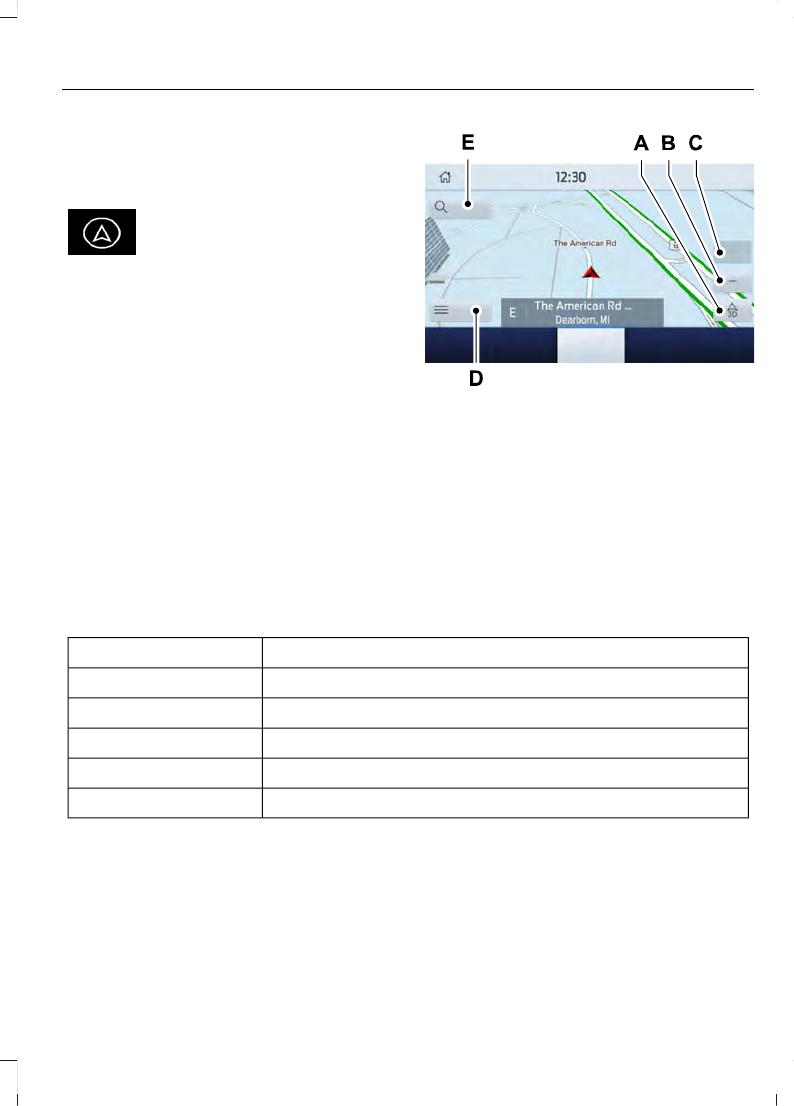
Select the navigation option on
the feature bar.
E297557
Map view menu.
A
Zoom out.
B
Zoom in.
C
Route guidance menu.
D
Destination entry menu.
E
Setting a Destination
Destination Entry Menu
Description
Item
Enter a destination address.
Search
Display and select from a list of previous destinations.
Previous Destinations
Set your saved home address as your destination
Home
Set your saved place of work as your destination.
Work
Display and select from a list of favorite destinations.
Favorites
387
SYNC™ 3
(If Equipped)
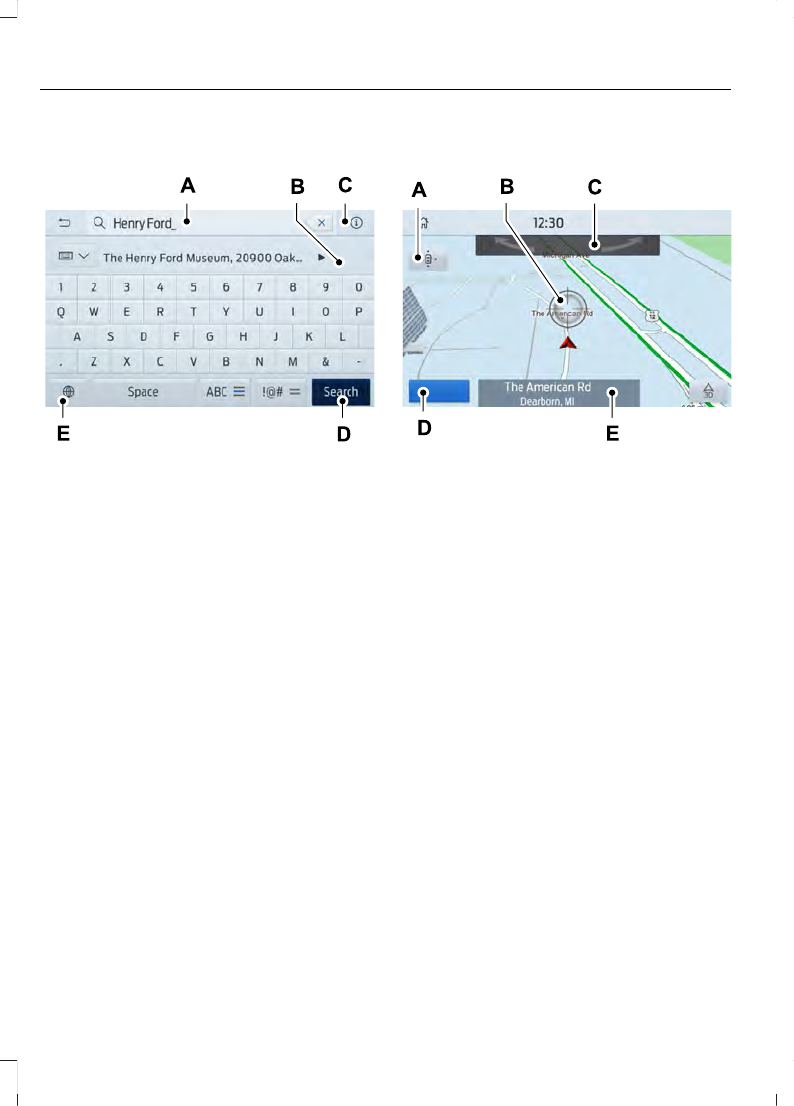
Setting a Destination Using the Text
Entry Screen
E297558
Text entry field.
A
Automatic suggestions based on
the text you enter.
B
Information icon.
C
Search.
D
Keyboard settings.
E
Note:
Select one of the suggestions to
copy the detail to the text entry field.
You can search by entering all or part of
the destination, such as the Address, POI
Category or Name, Intersection, City,
Latitude/Longitude, etc. Tips: If you do
not specify a location, the system will
use the current vehicle location. You can
specify a location by address, city, state
or zip code. For additional search support,
please visit: support.ford.com.
Note:
Press the button in the top right-hand
corner of the main map to display estimated
time of arrival, remaining travel time or
distance to destination.
Setting a Destination Using the Map
Screen
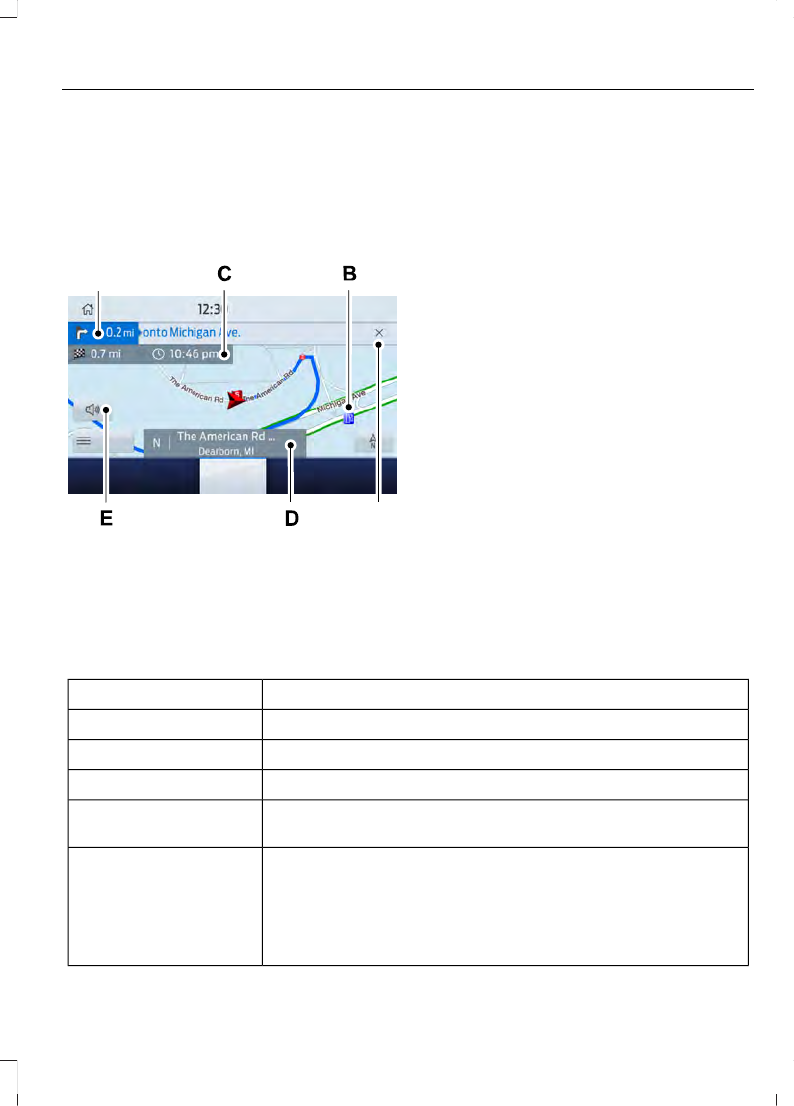
E297559
Re-center the map.
A
Selected location.
B
3D map rotation. Swipe left or
right.
C
Start route guidance.
D
Destination name.
E
Select the location on the map.
Select
Start
to begin route guidance.
Changing the Format of the Map
Display the map in one of the following
formats:
•
A two-dimensional map with the
direction you are traveling toward the
top of the screen.
•
A two-dimensional map with north
toward the top of the screen.
•
A three-dimensional map with the
direction you are traveling toward the
front.
Zoom
Display more or less detail on the map.
388
SYNC™ 3
(If Equipped)
Note:
You can use pinch gestures to zoom
in and out. Place two fingers on the screen
and move them apart to zoom in. Place two
fingers on the screen and bring them
together to zoom out.
Route Guidance
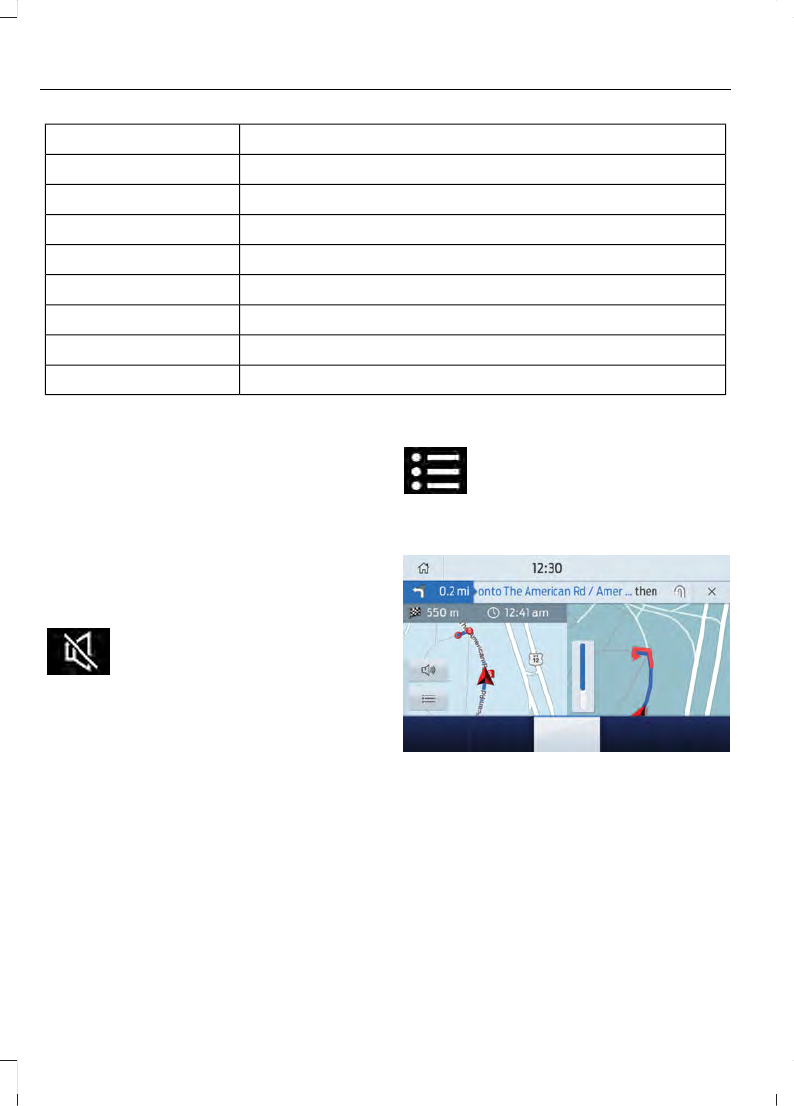
E297560
F
A
Turn indicator. Select to hear the
last voice prompt.
A
Point of interest.
B
Estimated time of arrival,
distance to destination or time
to destination.
C
Current road.
D
Mute guidance prompts.
E
Cancel route guidance.
F
Note:
To change guidance prompt volume,
turn the volume control when a guidance
prompt plays.
Route Guidance Menu
Description
Menu Item
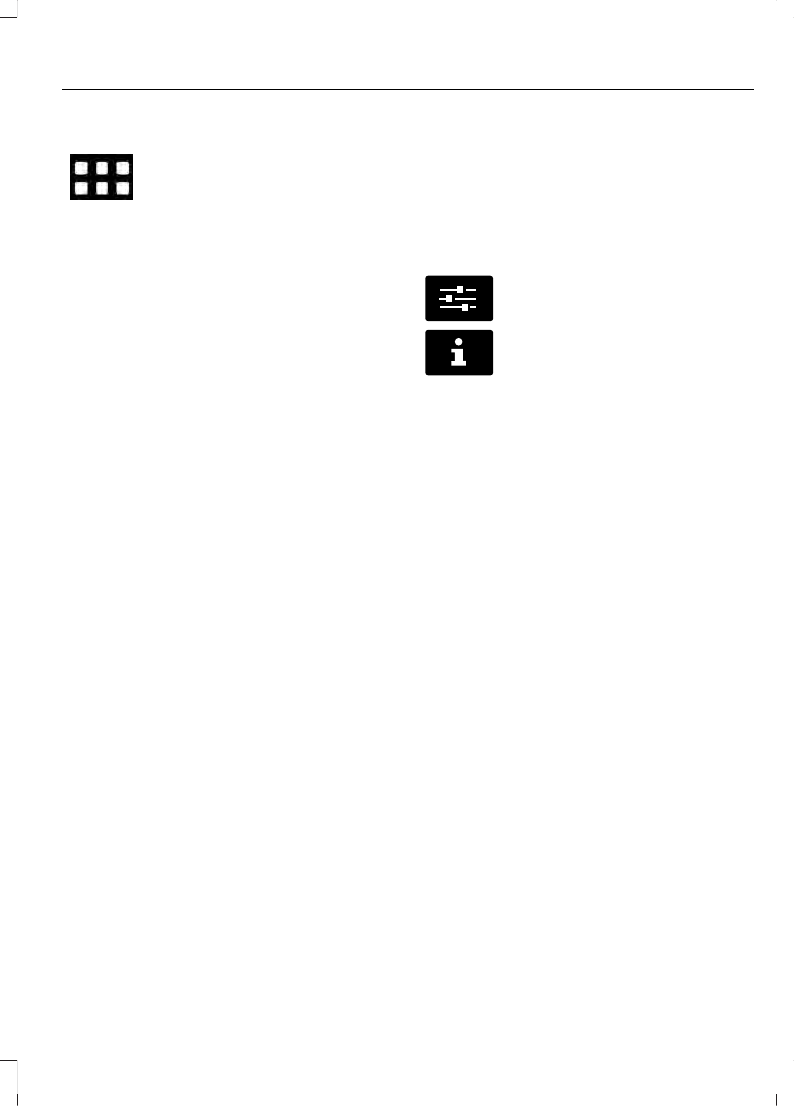
Adjust your map preferences for when route guidance is active.
Screen View
View a full screen map when route guidance is active.
Full Map
View highway exit information for your current route.
Highway Exit Info
View the turn list for your current route. Select a road to avoid
it.
Turn List
You can find the SiriusXM Traffic and Travel Link information
by pressing this button. This information requires an active
subscription to SiriusXM Traffic and Travel Link. When a route
is not active, a list of nearby traffic incidents displays. When a
route is active, you can choose to display a list of traffic nearby
or on the route.
Traffic List
389
SYNC™ 3
(If Equipped)
Description
Menu Item
Adjust navigation settings. See
Navigation Settings
View information about your current location.
Where Am I?
Cancel route guidance.
Cancel Route
View the entire current route on the map.
View Route
View an alternative route compared to your current one.
Detour
Change the order or remove waypoints.
Edit Waypoints
The system determines the order of waypoints for you.
Optimize Order
Go to the next screen and start the new route.
Go
Adjusting the Guidance Prompt
Volume
Turn the volume control when a guidance
prompt plays to adjust the volume.
Note:
If you have inadvertently adjusted
the volume to zero, press the turn indicator
button to play the last voice prompt and
then adjust the volume to the desired level.
Muting Guidance Prompts
Select the mute option on the
screen to mute guidance
prompts.
Note:
The system mutes the next and all
future guidance prompts.
Adding Waypoints
You can add a waypoint to a navigation
route as a destination along your route.
You can add up to five waypoints.
1.
Select the search option on the map.
2. Set a destination.
3. Select
Add Waypoint
.
4. Select
Go
.
Canceling Route Guidance
Select the route guidance menu
option on the active guidance
screen.
Select
Cancel Route
.
E294817
Note:
The route guidance menu option is
always in the bottom right-hand corner of
the main map.
cityseeker
(If Equipped)
Note:
cityseeker point of interest (POI)
information is limited to approximately 1,110
cities (1,049 in the United States, 36 in
Canada and 15 in Mexico).
390
SYNC™ 3
(If Equipped)

E225487
cityseeker, when available, is a service that
provides more information about certain
points of interest such as restaurants,
hotels and attractions.
When you have selected a point of interest,
the location and information appear, such
as address, phone number and a star
rating.
Press
More Information
to see a photo,
a review, a list of services and facilities, the
average room or meal price and the web
address. This screen displays the point of
interest icons.
For restaurants, cityseeker can provide
information such as star rating, average
cost, review, handicap access, hours of
operation, and website address.
For hotels, cityseeker can provide
information such as star rating, price
category, review, check-in and checkout
times, hotel service icons and website
address. Hotel service icons include:
•
Restaurant
•
Business center
•
Handicap facilities
•
Laundry
•
Refrigerator
•
24 hour room service
•
Fitness center
•
Internet access
•
Pool
•
Wi-Fi
Attractions include nearby landmarks,
amusement parks, historic buildings and
more. cityseeker can provide information
such as star rating, reviews, hour of
operation and admission price.
SiriusXM Traffic and Travel Link
(If
Equipped)
SiriusXM Traffic and Travel Link is available
on vehicles equipped with navigation and
only in select markets. You must activate
and subscribe to receive SiriusXM Traffic
and Travel Link information. It helps you
locate the best gas prices, find movie
listings, get current traffic alerts, view the
weather map, get accurate ski conditions
and see current sports scores.
The system calculates a reasonable
efficient route based on available speed
limits, traffic, and road conditions. You may
know a local short cut that is more efficient
at a given time than the route provided by
SYNC 3, but you should expect a slight
difference in minutes or miles with the
SYNC 3 route.
Michelin Travel Guide
(If Equipped)
The Michelin travel guide is a service which
provides additional information about
certain places of interest, for example
restaurants, hotels and tourist sites. Points
of interest that have Michelin travel guide
information display a button to show you
more information. Push the button to see
the additional information. If you have
paired your phone with the system, you
can press the phone button to directly
establish a call with the selected point of
interest.
391
SYNC™ 3
(If Equipped)

Navigation Map Accuracy and
Updates
HERE is the digital map provider for the
navigation application. If you find map data
errors, you may report them directly to
HERE by going to www.here.com. HERE
evaluates all reported map errors and
responds with the result of their
investigation by e-mail.
The navigation system map data may
contain inaccurate or incomplete
information due to the passage of time,
changing circumstances, sources used and
the nature of collecting comprehensive
geographic data, any of which may lead to
incorrect results. Inaccurate speed limit
information, turn restrictions and other
road attributes may affect the determined
route and associated guidance
Annual navigation map updates are
available for purchase through your
dealership. Depending on your purchase
agreement, you might be eligible for free
Map update. You can choose to download
the Map data update onto a USB, order a
USB, or use Wi-Fi to deliver automatic
updates. To update your Map data over
Wi-Fi, your vehicle must be connected to
a Wi-Fi access point. Map Data files are
large, so it is highly recommended to
perform the update when free Wi-Fi is
available otherwise high data rates may
apply. For USB updates, free map update
eligibility, and other details, contact
dealers at 1-866-462-8837 in the United
States and Canada or 01-800-557-5539
in Mexico or visit our local website for more
information.
APPS
Note:
For more information about available
apps, supported devices and
troubleshooting, refer to our local website.
When you start an app through the system
for the first time, you could be asked to
grant certain permissions. You can review
and change the permissions that you have
granted at any time when your vehicle is
not moving. See
Note:
We recommend that you check your
data plan before using your apps through
the system. Using them could result in
additional charges.
Note:
We recommend that you check the
app provider's terms and conditions and
privacy policy before using their app.
Note:
Make sure that you have an active
account for apps that you want to use
through the system.
Note:
Some apps will work with no setup.
Others require you to configure some
personal settings before you can use them.
Using Apps on an iOS Device
Select the apps option on the
feature bar.
1.
If your device is connected via USB,
switch Apple CarPlay off. See
2. Connect your device to a USB port or
pair and connect using Bluetooth.
3. If prompted to enable CarPlay, select
Disable
.
4. Start the apps on your device that you
want to use through SYNC.
Note:
If you close the apps on your device,
you will not be able to use them through the
system.
5. Select the app that you want to use on
the touchscreen.
Note:
Connect your device to a USB port if
you want to use a navigation app. When
using a navigation app, keep your device
unlocked and the app open.
392
SYNC™ 3
(If Equipped)
Using Apps on an Android Device
Select the apps option on the
feature bar.
1.
If your device is connected via USB,
switch Android Auto off. See
2. Switch on
Enable Mobile Apps via
USB
in the Mobile Apps Settings tile.
3. Pair your device. See
4. Start the apps on your device that you
want to use through SYNC.
Note:
If you close the apps on your device,
you will not be able to use them through the
system.
5. Select
Find Mobile Apps
.
Note:
The system searches and connects
to compatible apps that are running on your
device.
6. Select the app that you want to use on
the touchscreen.
Note:
Mobile Apps on your device use the
USB port to establish a connection with
SYNC. Some devices may lose the ability to
play music over USB when Mobile Apps are
enabled.
Using Mobile Navigation on an
Android Device
1.
Connect your device to a USB port.
2. Switch Android Auto off. See
3. Switch on
Enable Mobile Apps via
USB
in the Mobile Apps Settings tile.
4. Select the apps option on the feature
bar.
5. Select the navigation app that you
want to use on the touchscreen.
Note:
When using a navigation app, keep
your device unlocked and the app open.
Note:
Mobile Apps on your device use the
USB port to establish a connection with
SYNC. Some devices may lose the ability to
play music over USB when Mobile Apps are
enabled.
SETTINGS
E280315
Press the button to enter the
settings menu.
E268570
Once you select a tile, press the
button next to a menu item to
view an explanation of the
setting.
Sound
Select this tile to adjust the sound settings.
Clock
Select this tile to adjust the clock settings.
Bluetooth
Select this tile to switch Bluetooth on and
off and adjust the settings.
Phone
Select this tile to connect, disconnect, and
manage the connected device settings.
Audio
Select this tile to adjust the audio settings.
Driver Assist
(If Equipped)
Select this tile to adjust Driver Assist
features like Park Aid, Lane Keeping
system, Pedestrian Detection, and
Auto-Start-Stop.
Vehicle
Select this tile to adjust the vehicle settings
like windows, alarm, lighting, and MyKey
settings.
393
SYNC™ 3
(If Equipped)

FordPass
(If Equipped)
Select this tile to adjust the FordPass
settings.
General
Select this tile to adjust settings like
language, measurement units, or to reset
the system.
Emergency Assistance
Select this tile to switch Emergency
Assistance on and off.
Automatic Updates
Select this tile to adjust automatic update
settings.
Mobile Apps
Select this tile to adjust permissions,
enable, disable, and update mobile apps.
Display
Select this tile to adjust display settings
like brightness and auto dim.
Charge Settings
(If Equipped)
Select this tile to adjust the electric vehicle
charge settings.
Voice Control
Select this tile to adjust voice control
settings like command confirmations and
displayed lists.
Navigation
(If Equipped)
Select this tile to adjust navigation settings
like map preferences and route guidance.
Multi Contour Seats
(If Equipped)
Select this tile to adjust the position and
massage function of your multi-contour
seats.
Seats
(If Equipped)
Select this tile to adjust the lumbar
function of your seats.
Message Center
(If Equipped)
Select this tile to view vehicle messages.
Personal Profiles
(If Equipped)
Select this tile to adjust recalled memory
features when using Personal Profiles.
Valet Mode
(If Equipped)
Select this tile to enable and disable valet
mode.
394
SYNC™ 3
(If Equipped)

SYNC™ 3 TROUBLESHOOTING
Voice Recognition
Possible Cause and Resolution
Symptom
The system does not under-
stand what I am saying.
–
You are using the wrong voice commands.
•
•
For a complete list of voice commands, refer to our
website.
–
You are speaking too soon.
•
Wait for the voice prompt before you speak.
The system does not under-
stand the name of a track or
artist.
–
Device limitation. Bluetooth does not support voice
commands.
•
Connect your device to a USB port.
•
If you have an iOS device, press and hold the voice
control button on the steering wheel to use Siri to
play specific tracks.
–
You are using the wrong voice commands.
•
•
For a complete list of voice commands, refer to our
website.
–
You are not saying the name exactly as it appears on
your device.
•
Say the name of the track or artist exactly as it
appears on your device. Spell out any abbreviations
in the name.
The song or artist name may have some special char-
acters that are not being recognized by the system.
–
The name contains special characters, for example *,
- or +.
•
Rename the files on your device or use the touch-
screen to select and play the track.
395
SYNC™ 3
(If Equipped)
Possible Cause and Resolution
Symptom
–
You are not saying the name exactly as it appears on
your device.
•
Say the first and last name of the contact exactly
as it appears on your device. Spell out any abbrevi-
ations in the name.
–
The name contains special characters, for example *,
- or +.
•
Rename the contact on your device or use the
touchscreen to select and call the contact.
The system does not under-
stand the name of a contact
in the phonebook on my
device and calls the wrong
contact.
–
You are not saying the name exactly as it appears on
your device.
•
Say the first and last name of the contact exactly
as it appears on your device. The system applies
phonetic pronunciation rules of the selected
language to the names of contacts in the phone-
book on your device. Select the name of the
contact on the touchscreen and use the Hear it
option to get an idea of how the system expects
you to pronounce it.
The system does not under-
stand foreign names of
contacts in the phonebook
on my device.
–
Device limitation.
•
The system uses text-to-speech technology and
uses a synthetically generated voice rather than
pre-recorded human voice.
The system voice prompts
and the pronunciation of
some words does not seem
to be very accurate.
USB and Bluetooth Audio
Possible Cause and Resolution
Symptom
I cannot connect my device. –
Device malfunction.
•
Disconnect your device. Switch your device off,
reset it and try again.
–
Cable connection issue.
•
Correctly connect the cable to your device and the
vehicle USB port.
–
Incompatible cable.
•
Use the cable recommended by the manufacturer
of your device.
396
SYNC™ 3
(If Equipped)

Possible Cause and Resolution
Symptom
–
Incorrect device settings.
•
Make sure that your device does not have an auto-
install program or active security settings.
•
Check that your device is not set only to charge.
–
Device lock screen enabled.
•
Unlock your device before connecting it.
The system does not recog-
nize my device.
–
Device limitation.
•
Do not leave your device in your vehicle during very
hot or very cold weather conditions.
–
Cable connection issue.
•
Correctly connect the cable to your device and the
vehicle USB port.
–
Incompatible cable.
•
Use the cable recommended by the manufacturer
of your device.
The system does not under-
stand the name of a track or
artist.
–
Device limitation. Bluetooth does not support voice
commands.
•
Connect your device to a USB port.
•
If you have an iOS device, press and hold the voice
control button on the steering wheel to use Siri to
play specific tracks.
I cannot stream audio from
my Bluetooth device.
–
Incompatible device.
•
Check the compatibility of your device on our
website.
–
Device not connected.
•
Pair your device. See
–
Media player not running.
•
Start the media player on your device.
The system does not recog-
nize the music on my device.
–
Missing or incorrect audio file metadata, for example
artist, song title, album or genre.
•
Repair the files on your device.
–
Corrupt files.
•
Repair the files on your device.
397
SYNC™ 3
(If Equipped)

Possible Cause and Resolution
Symptom
–
Copyright protected files.
•
Use a device that contains files that are not copy-
right protected.
–
Unsupported file format.
•
Repair or convert the files to a supported format.
See
–
Device indexing required.
•
Re-index your device. See
–
Device lock screen enabled.
•
Unlock your device before connecting it.
Sometimes I cannot hear a
track playing on my device.
–
Device malfunction.
•
Disconnect your device. Switch your device off,
reset it and try again.
When I disconnect my iOS
device the audio volume is
set to maximum.
–
Device limitation.
•
Turn the volume down on your device
If the system does not play the tracks on your USB device
in the correct order, the following information could help:
The system does not play
the tracks on my USB drive
in the correct order.
–
If you are selecting USB as the audio source when the
system is still indexing, SYNC plays tracks sorted
alphabetically by file name in the root directory.
–
If you are selecting USB as the audio source after the
system has finished indexing, SYNC plays all tracks
sorted alphabetically by the title in the ID3 tag
regardless of where they are located. SYNC uses the
file name if the title in the ID3 Tag does not exist.
–
If you are selecting the option to play all tracks from
the browsing menu, SYNC plays all tracks sorted
alphabetically by the title in the ID3 tag regardless of
where they are located. SYNC uses the file name if the
title in the ID3 Tag does not exist.
–
If you are selecting a track when using the explore
device option, SYNC plays tracks sorted alphabetically
by file name in the folder you have selected. SYNC
then plays all tracks in any subfolders in the folder you
have selected.
398
SYNC™ 3
(If Equipped)

Phone
Possible Cause and Resolution
Symptom
During a call, I can hear
excessive background noise.
–
Incorrect cell phone settings.
•
Check and adjust the audio settings on your cell
phone. Refer to your cell phone's user manual.
–
Cell phone malfunction.
•
Switch your cell phone and Bluetooth on and off
and try again.
–
Cell phone microphone muted.
•
Unmute your cell phone microphone.
During a call, I can hear the
other person but they
cannot hear me.
During a call, I cannot hear
the other person and they
cannot hear me.
–
System restart required.
•
Restart the system. Switch the ignition off and
open the door. Close the door and lock the vehicle.
Wait until the touchscreen is off and any illumin-
ated USB ports are not illuminated. Unlock the
vehicle, switch the ignition on and try again.
I cannot download phone-
book.
–
Incompatible cell phone.
•
Check the compatibility of your cell phone on our
website.
–
Incorrect cell phone settings.
•
Allow the system to retrieve contacts from your
cell phone. Refer to your cell phone's user manual.
–
Incorrect system settings.
•
Switch automatic phonebook download on. See
–
Cell phone malfunction.
•
Switch your cell phone off, reset it and try again.
–
Incorrect cell phone settings.
•
Allow the system to retrieve contacts from your
cell phone. Refer to your cell phone's user manual.
•
Check the location of the missing contacts on your
cell phone. If they are stored on the SIM card, move
them to the cell phone memory.
–
Incorrect system settings.
•
Switch automatic phonebook download on. See
A message displays
suggesting that my phone-
book has downloaded but it
is empty or it has missing
contacts.
399
SYNC™ 3
(If Equipped)

Possible Cause and Resolution
Symptom
–
Incompatible cell phone.
•
Check the compatibility of your cell phone on our
website.
–
Cell phone malfunction.
•
Switch your cell phone off, reset it and try again.
•
Install the latest cell phone firmware.
•
Delete your device from system and delete SYNC
from your device and try again.
•
Switch automatic phonebook download off. See
I cannot connect my cell
phone.
Text messaging does not
work.
–
You did not switch on text message notifications.
•
Switch text message notifications on. See
–
Incompatible cell phone.
•
Check the compatibility of your cell phone on our
website.
–
Cell phone malfunction.
•
Switch your cell phone off, reset it and try again.
–
Device message sharing is not enabled.
•
Check the permissions on your device to ensure
text message sharing is enabled.
–
Incompatible cell phone.
•
Check the compatibility of your cell phone on our
website.
I cannot hear text messages.
400
SYNC™ 3
(If Equipped)
Navigation
(If Equipped)
Possible Cause and Resolution
Symptom
I cannot enter a street name
when I am abroad.
–
Incorrect entry method.
•
Enter the street name with the country.
The system does not recog-
nize coordinates.
–
You are using the wrong coordinates format.
•
Use the format ##. #####, ##. ##### (for N/S ,
E/W). Add a minus before coordinates if the
direction is West and keep a positive value if the
direction is East, for example 12.5412 means East
and -12.5412 means West.
401
SYNC™ 3
(If Equipped)

Apps
Possible Cause and Resolution
Symptom
The system cannot find any
apps.
–
Incompatible device.
•
You will need an Android device with OS 4.3 or
higher or an iOS device with iOS 8.0 or higher. Pair
and connect your Android device to find AppLink
compatible apps. Connect your iOS device to a
USB port or pair and connect using Bluetooth.
I have a compatible device
and it is correctly connected
but the system still cannot
find any apps.
–
AppLink compatible apps not installed on your device.
•
Download and install the latest version of the app.
–
AppLink compatible apps not running on your device.
•
Start the apps to allow the system to find them
and make sure you sign in to any apps if required.
–
Incorrect app settings.
•
Check and adjust the app settings on your device
and allow SYNC to access the app if required.
I have a compatible device,
it is correctly connected and
my apps are running but the
system still cannot find any
apps.
–
Apps failed to fully close.
•
Restart the apps and try again.
•
If you have an Android device with apps that have
an exit or quit option, use this and then restart the
apps. Alternatively, use the force stop option in the
settings menu on your device.
•
If you have an iOS device with iOS 7.0 or higher, tap
the home button on your device twice and then
swipe the app upward to close it.
I have an Android device
that is correctly connected,
I have restarted my apps
and they are running but the
system still cannot find
them.
–
An issue on some older versions of the Android oper-
ating system could result in apps not being found.
•
Switch Bluetooth off and on again to force the
system to reconnect to your device.
402
SYNC™ 3
(If Equipped)

Possible Cause and Resolution
Symptom
I have an iOS device that is
correctly connected, I have
restarted my apps and they
are running but the system
still cannot find them.
–
Cable connection issue.
•
Disconnect the cable from your device, wait for a
moment and then connect it again to force the
system to reconnect to your device.
I have an Android device
running a media app which
the system has found but I
cannot hear the sound or
the sound is very quiet.
–
Device volume is low.
•
Turn the volume up on your device.
I have an Android device
running a number of
compatible apps but the
system cannot find all of
them.
–
Device limitation. Some Android devices have a limited
number of Bluetooth ports that apps can use to
connect. If you have more apps running on your device
than the number of available Bluetooth ports, the
system cannot find all of them.
•
Close some of the apps to allow the system to find
those that you want to use.
403
SYNC™ 3
(If Equipped)

Wi-Fi Connectivity
Possible Cause and Resolution
Symptom
I cannot connect to a Wi-Fi
network.
–
Password error.
•
Enter the correct network password.
–
Weak network signal.
•
Move your vehicle closer to the Wi-Fi hotspot or to
a place where the network signal is not obstructed.
–
Multiple access points in range with the same SSID.
•
Use a unique name for your SSID. Do not use the
default name unless it contains a unique identifier,
for example as part of the MAC address.
The Wi-Fi connection
disconnects after successful
connection.
–
Weak network signal.
•
Move your vehicle closer to the Wi-Fi hotspot or to
a place where the network signal is not obstructed.
I am close to a Wi-Fi hotspot
but the network signal
strength is weak.
–
Obstructed network signal.
•
If your vehicle has a heated windshield, position
your vehicle so that the windshield is not facing the
Wi-Fi hotspot.
•
If your vehicle has metallic tinting on the windows
but not on the windshield, position your vehicle so
that the windshield is facing the Wi-Fi hotspot or
open the windows that are facing the hotspot.
•
If your vehicle has metallic tinting on the windows
and the windshield, open the windows that are
facing the hotspot.
•
If your vehicle is in a garage and you have the
garage door closed, open the garage door.
I cannot see a network in the
list of available networks
that I expect to see.
–
Hidden network.
•
Make the network visible and try again.
404
SYNC™ 3
(If Equipped)
Possible Cause and Resolution
Symptom
I cannot see SYNC when I
search for Wi-Fi networks on
my cell phone or other
device.
–
System limitation.
•
SYNC does not provide a Wi-Fi hotspot at this time.
–
Weak network signal
•
Move your vehicle closer to the Wi-Fi hotspot or to
a place where the network signal is not obstructed.
–
Wi-Fi hotspot in high demand or has a slow Internet
connection.
•
Use a more reliable Wi-Fi hotspot.
Software downloads take
too long.
–
No software update available.
–
Wi-Fi network requires a subscription or acceptance
of terms and conditions.
•
Test the connection using another device. If the
network requires a subscription or acceptance of
terms and conditions, contact the network service
provider.
The system seems to
connect to a Wi-Fi network
and the signal strength is
excellent but the software
does not update.
Personal Profiles
(If Equipped)
Possible Cause and Solution
Symptom
You have not set up Personal Profiles.
I cannot create a profile.
You entered an invalid profile.
You did not select a memory button when prompted.
You did not have the ignition on or in park (P), or you
shifted out park (P) when creating a profile.
Personal Profiles has been switched off.
You did not select the lock button on the remote control.
I cannot link a remote
control.
The remote control selected was already associated with
another profile and the system declined to overwrite.
The system performed a profile recall when linking a
remote control.
You did not have the ignition on or in park (P), or you
shifted out park (P) when creating a profile.
405
SYNC™ 3
(If Equipped)
Possible Cause and Solution
Symptom
You are using the old linking method.
Personal Profiles does not support your unsaved settings.
My personalized settings do
not save.
A different personal profile is active.
Another user changed the settings for the wrong personal
profile.
You did not create a personal profile.
My profile will not recall.
Personal Profiles is turned off.
The profile you requested is already active.
You did not link the memory button you are using to a
profile.
You did not link the remote control you are using to a
profile.
You are using the wrong remote control.
You are pressing a button other than the unlock or remote
start on a linked remote control.
You deleted the personal profile.
You switched the personal profiles off.
My preset positions recall,
but my profile does not.
The vehicle is in motion.
My profile recalls but my
preset positions do not.
The preset positions are the same as the guest or previ-
ously active profile.
Unlink and relink your remote control in the Personal
Profiles menu. You may need to see your authorized dealer.
I lost a remote control.
You erased and reprogrammed the remote controls. This
could happen if you let a dealership add a new remote
control to replace a lost one.
I lost all profiles.
Someone performed a master reset without your know-
ledge.
406
SYNC™ 3
(If Equipped)

Resetting the System
1.
Simultaneously press and hold the
seek up and the audio unit power
buttons until the screen goes black.
2. Wait three minutes to allow the system
to complete the reset.
3. Press the audio unit power button to
switch the system on.
Note:
You can reset the system to restore
functionality that has stopped working. The
system reset is designed to restore
functionality and not delete any data that
you have stored.
Additional Information and
Assistance
For additional information and assistance,
we recommend that you contact an
authorized dealer or refer to our website.
407
SYNC™ 3
(If Equipped)


