


PRINCIPLE OF OPERATION
MyKey allows you to program keys with
restricted driving modes to promote good
driving habits. You can program the
restrictions to all keys except one. Any keys
that you did not program are administrator
keys or admin keys.
You can use admin keys to:
•
Create a MyKey with certain vehicle
restrictions.
•
Program certain MyKey settings.
•
Clear all MyKey restrictions.
After you program a MyKey, you can view
the following information through the
information display:
•
The total number of admin keys and
MyKeys for your vehicle.
•
The total distance a MyKey driver
traveled with your vehicle.
Note:
Every MyKey receives the same
restrictions and settings. You cannot
program them individually.
Note:
For vehicles equipped with a
push-button start switch: When both a
MyKey and an admin key are present when
you start your vehicle, the system recognizes
the admin key only.
Standard Settings
Not every vehicle includes the features
listed below. If your vehicle has this
equipment, then you cannot change the
following settings when using a MyKey:
•
Seatbelt reminder or Belt-Minder™.
MyKey mutes the audio system until
drivers, and in some instances,
passengers, fasten their seatbelts.
Note:
If your vehicle includes an
AM/FM radio or a very basic audio
system, then the radio may not mute.
•
Earlier low-fuel warning. The low-fuel
warning activates earlier for MyKey
drivers, giving them more time to refuel.
•
Certain driver alerts, stability systems
or parking aids turn on automatically
when you use the MyKey system. For
example, Blind Spot Information
System (BLIS), cross traffic alert, lane
departure warning or forward collision
warning.
Note:
MyKey drivers may be
able to turn the lane departure warning
feature off, but this feature turns back
on automatically with every new key
cycle.
•
Restricted touchscreen operation in
some markets. For example, MyKey
may prevent manual navigation
destination input while the vehicle is in
any gear other than park (P) or when
the vehicle reaches a certain rate of
speed.
•
Satellite radio adult content
restrictions, if this feature is available
in your market.
Optional Settings
You can configure certain vehicle feature
settings when you first create a MyKey. You
can also change the settings afterward
with an admin key.
58
MyKey™
Note:
Not every feature applies to every
vehicle in every market. When they are
available for your vehicle, then they appear
in your information display, providing
choices to switch them on or off, or to select
a more specific setting.
•
Various vehicle speed limits so the
MyKey driver cannot exceed certain
speeds. The information display shows
warnings followed by an audible tone
when the MyKey driver reaches the set
speed. You cannot override the set
speed by fully depressing the
accelerator pedal.
WARNING:
Do not set MyKey
maximum speed limit to a limit that will
prevent the driver from maintaining a
safe speed considering posted speed
limits and prevailing road conditions. The
driver is always responsible to drive in
accordance with local laws and
prevailing conditions. Failure to do so
could result in accident or injury.
•
Various vehicle speed reminders so
MyKey drivers know when their vehicle
speed approaches the limits. Warnings
appear in your information display and
a tone sounds when the MyKey drivers
exceed the set vehicle speed.
•
The audio system's maximum volume
limits to 45% so MyKey drivers can
concentrate on the road. A message
appears in the information display
when MyKey drivers attempt to exceed
the limited volume. MyKey also
disables the automatic volume control.
Note:
If your vehicle includes an
AM/FM radio or a very basic audio
system, then the radio may not limit.
•
Always on setting. This setting forces
certain features to remain on and
active for MyKey drivers. For example,
E911 or emergency assistance and the
do not disturb features stay on even if
a MyKey driver uses the feature's
control to switch it off. When selected,
you will not be able to turn off Advance
Trac or traction control (if your vehicle
has this feature).
CREATING A MYKEY
Use the information display to create a
MyKey:
1.
Insert the key you want to program into
the ignition. If your vehicle has a
push-button start, place the remote
control into the backup slot. See
2. Switch the ignition on.
3. Access the main menu in the
information display and then scroll
through the menus to change the
settings of your MyKey. From the
MyKey menu select the option Create
MyKey. See
59
MyKey™

4. Select
Yes
if you want to create the
key as MyKey. A confirmation message
appears on the screen.
5. Switch the ignition off.
You successfully created a MyKey. Make
sure you label it so you can distinguish it
from the admin keys.
You can also program configurable
settings for the key(s). See
Programming
and Changing Configurable Settings
.
Programming and Changing
Configurable Settings
Use the information display to access your
configurable MyKey settings.
1.
Switch the ignition on using an admin
key or transmitter you want to program.
2. Access the main menu in the
information display and then scroll
through the menus to change the
settings of your MyKey. See
3. Follow the instructions in the display.
The programmed restrictions apply
when you switch the vehicle off, open
and close the driver door and restart
your vehicle with the programmed key
or transmitter.
Note:
You can clear or change your MyKey
settings at any time during the same key
cycle as you created the MyKey. Once you
have switched the vehicle off, however, you
need an admin key to change or clear your
MyKey settings. When you make any
changes to your MyKey settings, you change
the settings for every MyKey. You cannot
make individual changes to apply to certain
MyKeys.
CLEARING ALL MYKEYS
When you clear your MyKeys, you remove
all restrictions and return all MyKeys to
their original admin key status at once. To
clear all MyKeys of all MyKey settings, use
the information display.
1.
Switch the ignition on using an admin
key.
2. Access the main menu in the
information display and then scroll
through the menus to begin clearing
your MyKey programming. See
3. Follow the instructions in the display.
4. A confirmation message appears in the
display after you finish clearing your
MyKeys.
Note:
When you clear your MyKeys, you
remove all restrictions and return all MyKeys
to their original admin key status. You
cannot remove the MyKey restrictions
individually.
CHECKING MYKEY SYSTEM
STATUS
You can find information about your
programmed MyKeys by using the
information display. See
MyKey Distance
Tracks the distance when drivers use a
MyKey. The only way to delete the
accumulated distance is by using an admin
key to clear all MyKeys. If the distance does
not accumulate as expected, then the
intended user is not using the MyKey, or an
admin key user recently cleared and then
recreated a MyKey.
60
MyKey™

Number of MyKeys
Indicates the number of MyKeys
programmed to your vehicle. Use this
feature to detect how many MyKeys you
have for your vehicle and determine when
all MyKeys have been deleted.
Number of Admin Keys
Indicates how many admin keys are
programmed to your vehicle. Use this
feature to determine how many admin
keys you have for your vehicle, and detect
if an additional MyKey has been
programmed.
USING MYKEY WITH REMOTE
START SYSTEMS
MyKey is not compatible with non
Ford-approved, aftermarket remote start
systems. If you choose to install a remote
start system, see an authorized dealer for
a Ford-approved remote start system.
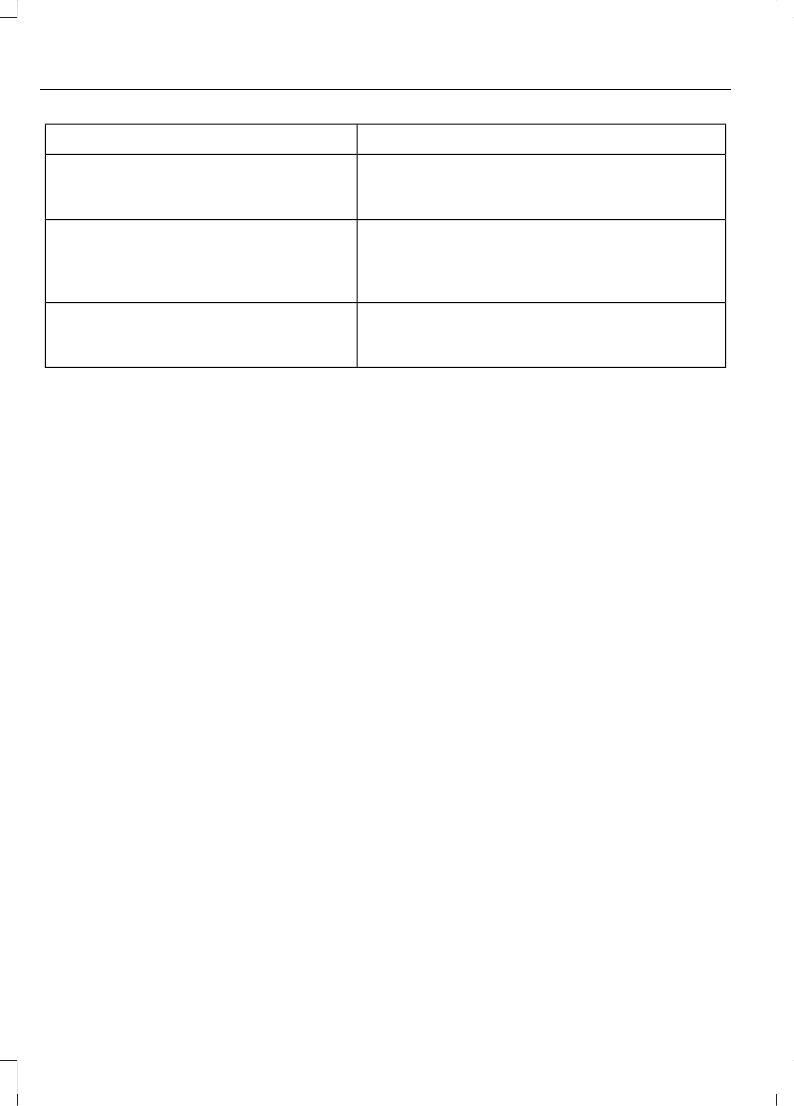
MYKEY – TROUBLESHOOTING
Potential Causes
Condition
The key or transmitter used to start the vehicle
does not have admin privileges.
I cannot create a MyKey.
Vehicles with keyless start: Make sure you place
the transmitter into the backup slot. See
The key or transmitter used to start the vehicle
is the only admin key. There always has to be
at least one admin key.
The passive anti-theft system is disabled or in
unlimited mode.
The transmitter used to start your vehicle does
not have admin privileges.
I cannot program the configurable
settings.
There are no MyKeys programmed to the
vehicle. See
The key or transmitter used to start the vehicle
does not have admin privileges.
I cannot clear the MyKeys.
No MyKeys are created. See
Purchase a new key or transmitter from an
authorized dealer.
I lost the only admin key.
61
MyKey™
Potential Causes
Condition
Program a spare key or transmitter. You may
need to see an authorized dealer. See
I lost a key.
The MyKey user is not using the MyKey.
The MyKey distance does not accumu-
late.
An admin key holder cleared the MyKeys and
created new MyKeys.
The key system has been reset.
An admin transmitter is present at vehicle start.
No MyKey functions with the trans-
mitter.
There are no MyKeys programmed to your
vehicle. See
62
MyKey™


