

GENERAL INFORMATION
WARNING:
Driving while distracted
can result in loss of vehicle control, crash
and injury. We strongly recommend that
you use extreme caution when using any
device that may take your focus off the
road. Your primary responsibility is the
safe operation of your vehicle. We
recommend against the use of any
hand-held device while driving and
encourage the use of voice-operated
systems when possible. Make sure you
are aware of all applicable local laws
that may affect the use of electronic
devices while driving.
Note:
Your vehicle may or may not be
equipped with all the messages listed in this
chapter. Your vehicle will not display
messages of systems it is not equipped with.
Various systems on your vehicle can be
controlled using the information display
controls on the steering wheel.
Corresponding information is displayed in
the information display.
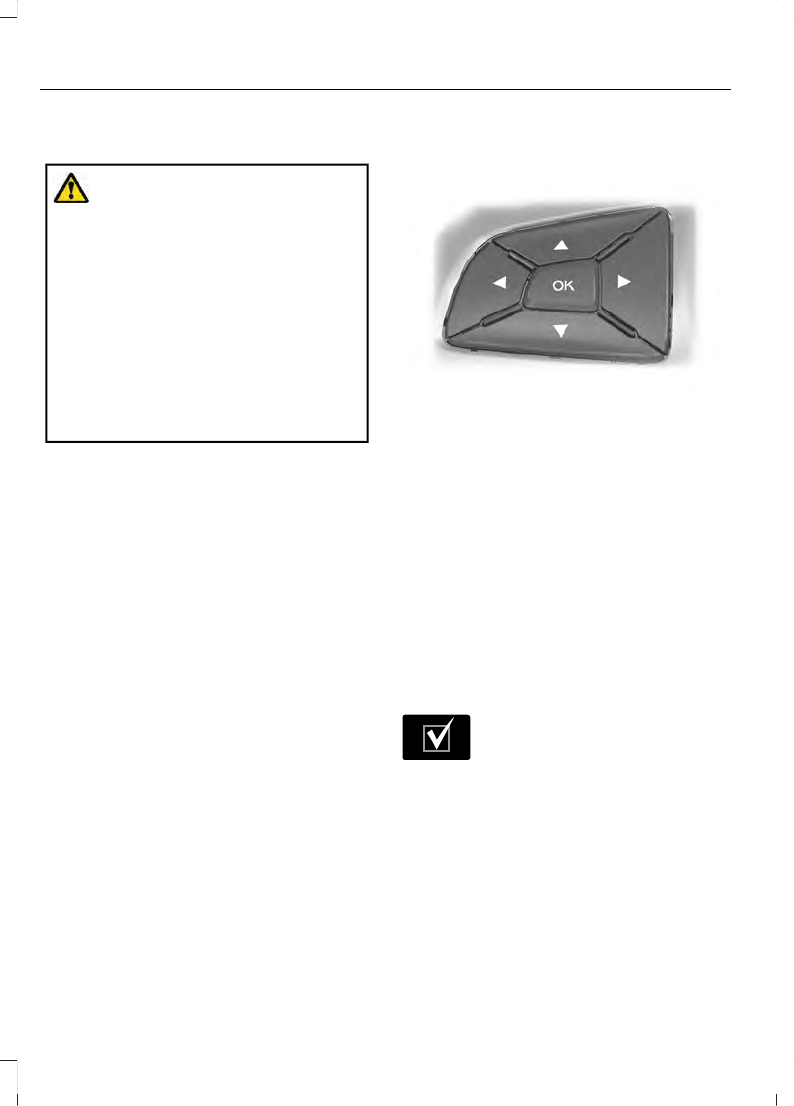
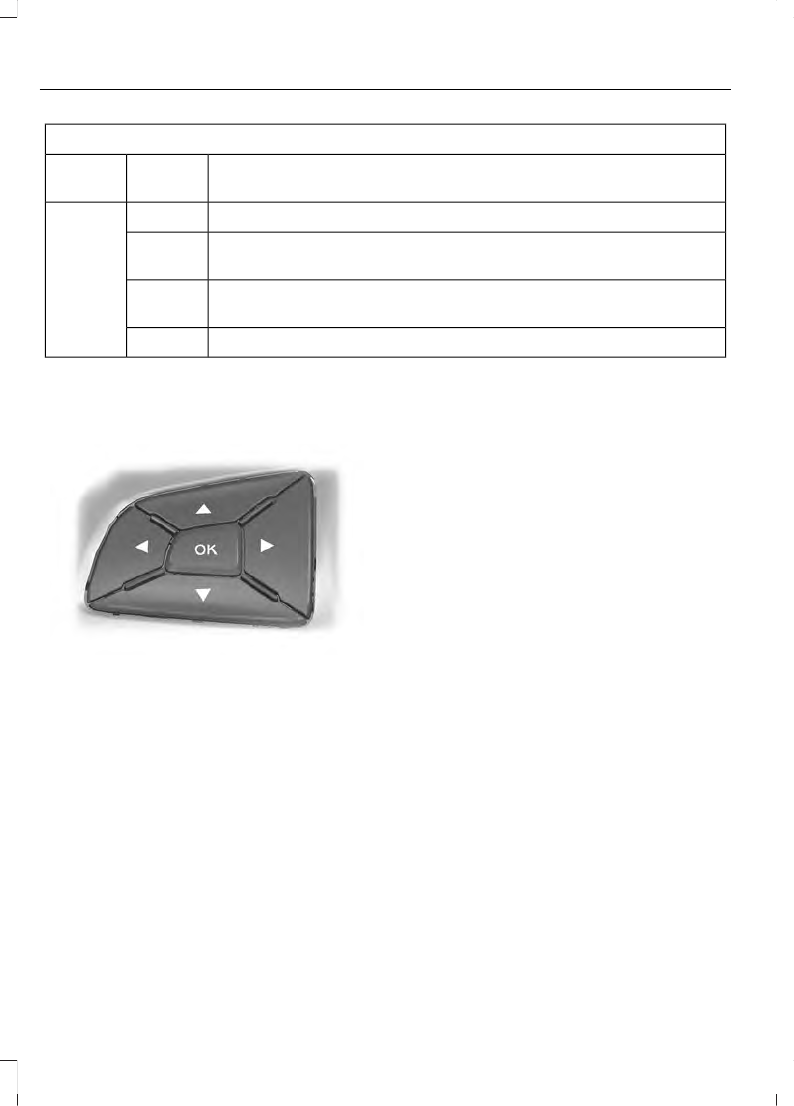
Information Display Controls
(Type 1 and Type 2)
E205893
•
Press the up or down arrow buttons to
scroll through the list.
•
Press the right arrow button to enter a
sub-menu.
•
Press the left arrow button to exit a
menu.
•
Press and hold the left arrow button at
any time to return to the main menu
display (escape button).
•
Press the
OK
button to choose and
confirm settings or messages.
Menu
You can access the menu using the
information display control.
E204495
This icon gives you the ability to
switch a feature on or off. A
check in the box indicates the
feature is enabled, and unchecked
indicates the feature is disabled.
Note:
Some options may appear slightly
different or not at all if the items are
optional.
96
Information Displays
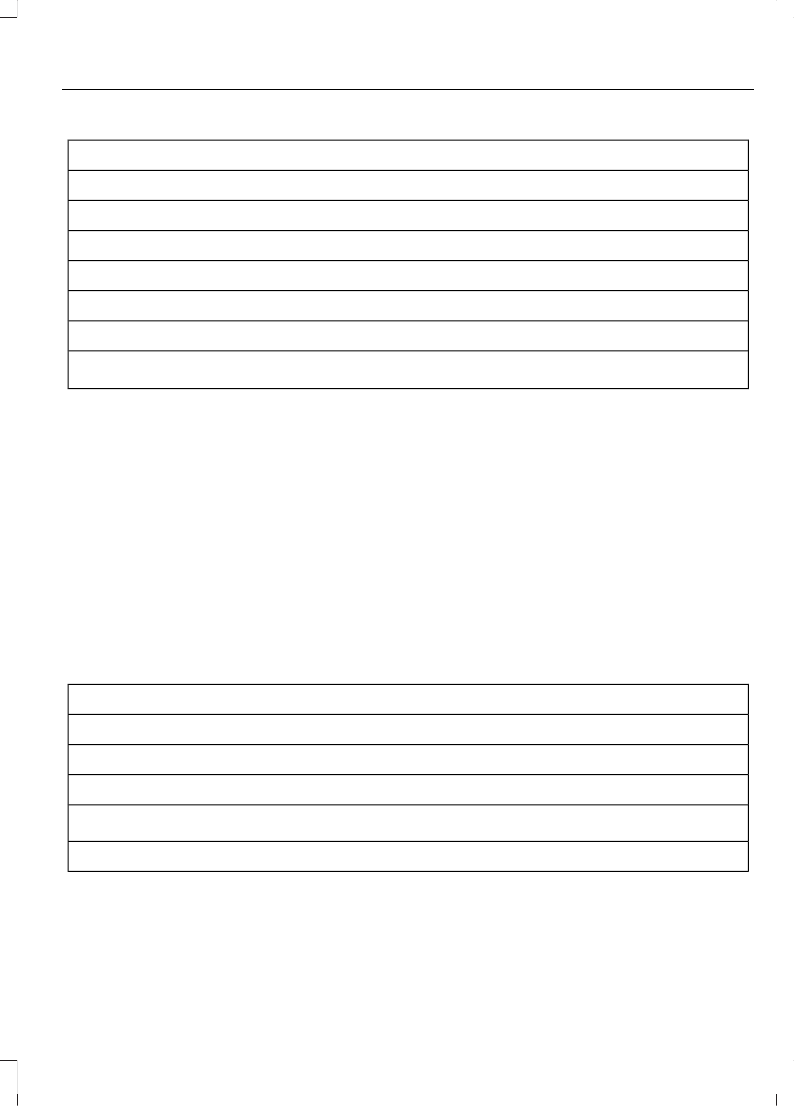
Trip 1 and 2
Digital Speedo
Distance to E
Trip Odometer
Trip Timer
Average Fuel
Outside Temp.
All Values
1
1
Type 2
•
Digital Speedometer - Shows the speed your vehicle is traveling.
•
Distance to E - Shows the approximate distance your vehicle can travel before running
out of fuel.
•
Trip Odometer — Registers the distance of individual journeys.
•
Trip Timer — The timer stops when you turn your vehicle off and restarts when you
restart your vehicle.
•
Average Fuel — Shows the average fuel economy for a given trip.
•
Outside Temperature — Shows the outside air temperature.
•
All Values — Shows the Distance to E, Trip Odometer, Trip Timer and Average Fuel.
Note:
Press and hold
OK
on the current screen to reset the respective trip, distance, time
and fuel information.
Fuel Economy
Distance to E
Inst Fuel Econ
Average Fuel
Fuel History
1
Average Speed
97
Information Displays
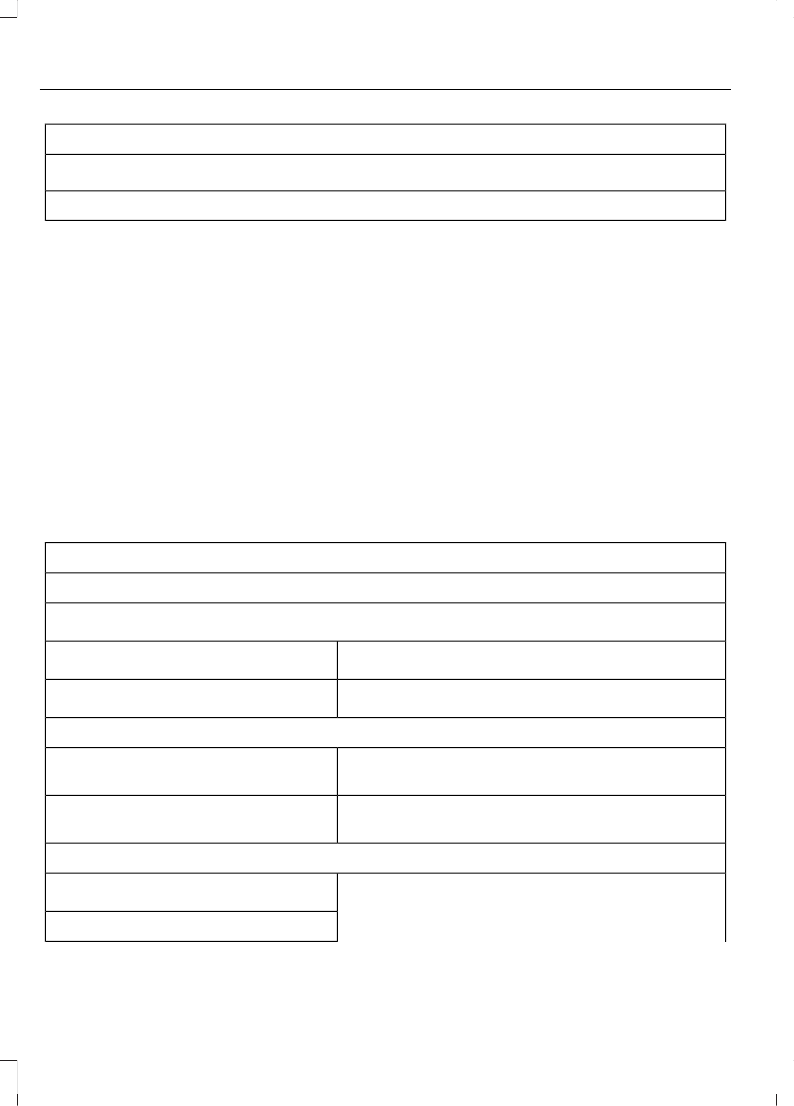
Fuel Economy
All Values
1
Auto StartStop
1
Type 2
•
Distance to Empty - Shows the approximate distance your vehicle can travel before
running out of fuel.
•
Inst Fuel Economy - Shows a visual graph of your instantaneous fuel economy along
with your Avg MPG since the function was last reset.
•
Average Fuel — Shows the average fuel economy for a given trip.
•
Fuel History - Shows a bar chart of your fuel history.
•
Average Speed — Shows your average speed for a given trip.
•
All Values — Shows all fuel economy values (DTE, Inst Fuel Econ, Avg Fuel).
•
Auto StartStop - Available Auto Start-Stop messaging will provide details about what
is happening with your system. See
Note:
You can reset your average fuel economy by pressing and holding the
OK
button on
the left hand steering wheel controls.
Driver Assist
Traction control
Cross Traffic
1
Enter the submenu and select your setting
Cruise Control
1
Enter the submenu and select your setting
Driver Alert
1
Hill Start Assist
Enter the submenu and
select your setting
Lane Keeping System
1
Enter the submenu and
select your setting
Pre-Collision
Rear Park Aid
Enter the submenu and select your setting
Speed Limiter
1
Tire Monitor
98
Information Displays
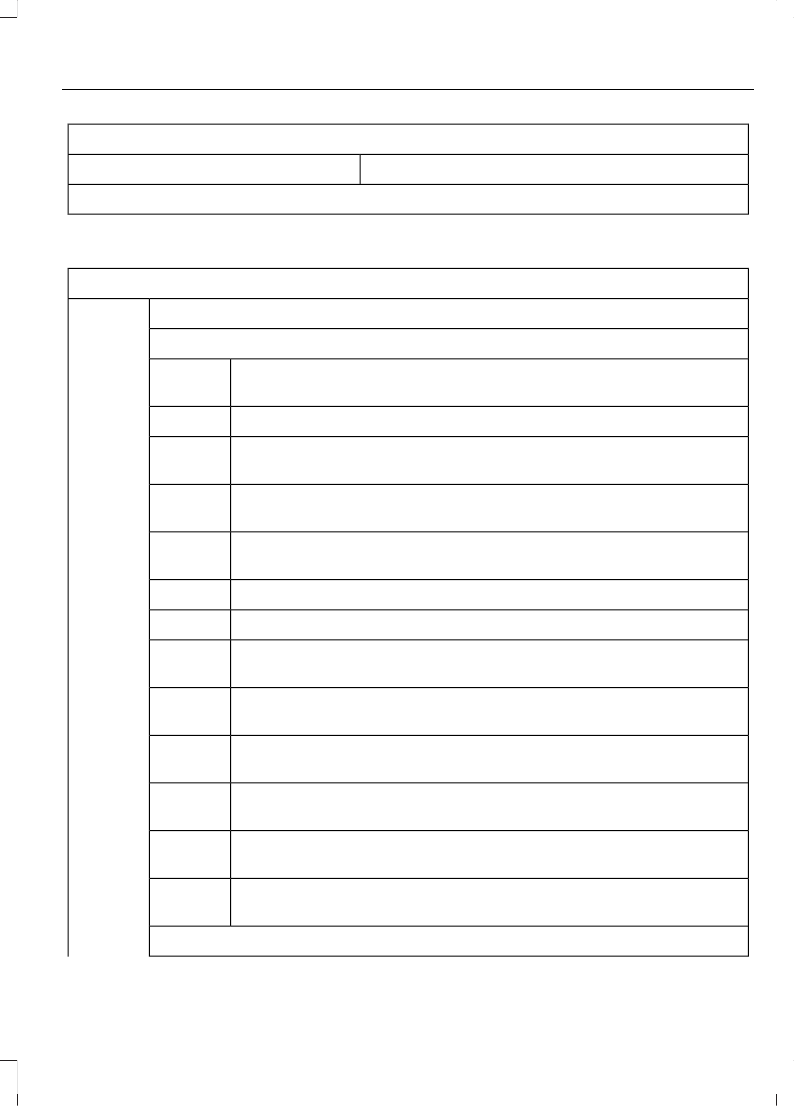
Driver Assist
Tire Pressure
Trailer Sway
1
Type 2
Settings
Auto Engine Off
Vehicle
Easy Entry/Exit
Enter the submenu and
select your setting
Lighting
Enter the submenu and select your setting
Locks
Hold OK to Initialize Neutral Tow
Neutral
Tow
oil Life XXX% - Hold
OK
to Reset
Oil Life
Reset
Enter the submenu and
select your setting
Remote
Start
Enter the submenu and select your setting
Windows
Enter the submenu and select your setting
Wipers
Hold
OK
to Create MyKey
Create
MyKey
MyKey
Enter the submenu and select your setting
911
Assist
Enter the submenu and select your setting
Do Not
Disturb
Enter the submenu and select your setting
Traction
Control
Enter the submenu and select your setting
Max
Speed
Enter the submenu and select your setting
Speed
Minder
Volume Limiter
99
Information Displays
Settings
Hold
OK
to Clear All MyKeys
Clear
MyKeys
Enter the submenu and select your setting
Distance
Display
Setup
Enter the submenu and select your setting
Temper-
ature
Enter the submenu and select your setting
Tire Pres-
sure
Enter the submenu and select your setting
Language
Information Display Controls
(Type 3)
E205893
•
Press the up or down arrow buttons to
scroll through the list.
•
Press the right arrow button to enter a
sub-menu.
•
Press the left arrow button to exit a
menu.
•
Press and hold the left arrow button at
any time to return to the main menu
display (escape button).
•
Press the
OK
button to choose and
confirm settings or messages.
Main menu
From the main menu bar on the left side
of the information display, you can choose
from the following categories:
•
Display Mode
•
Trip 1 & 2
•
Fuel Economy
•
Driver Assist
•
Settings
Scroll up or down to highlight one of the
categories, then press the right arrow key
or
OK
to enter into that category. Press the
left arrow key as needed to exit back to the
main menu.
Display Mode
Use the up/down arrow buttons to choose
between the following display options.
100
Information Displays
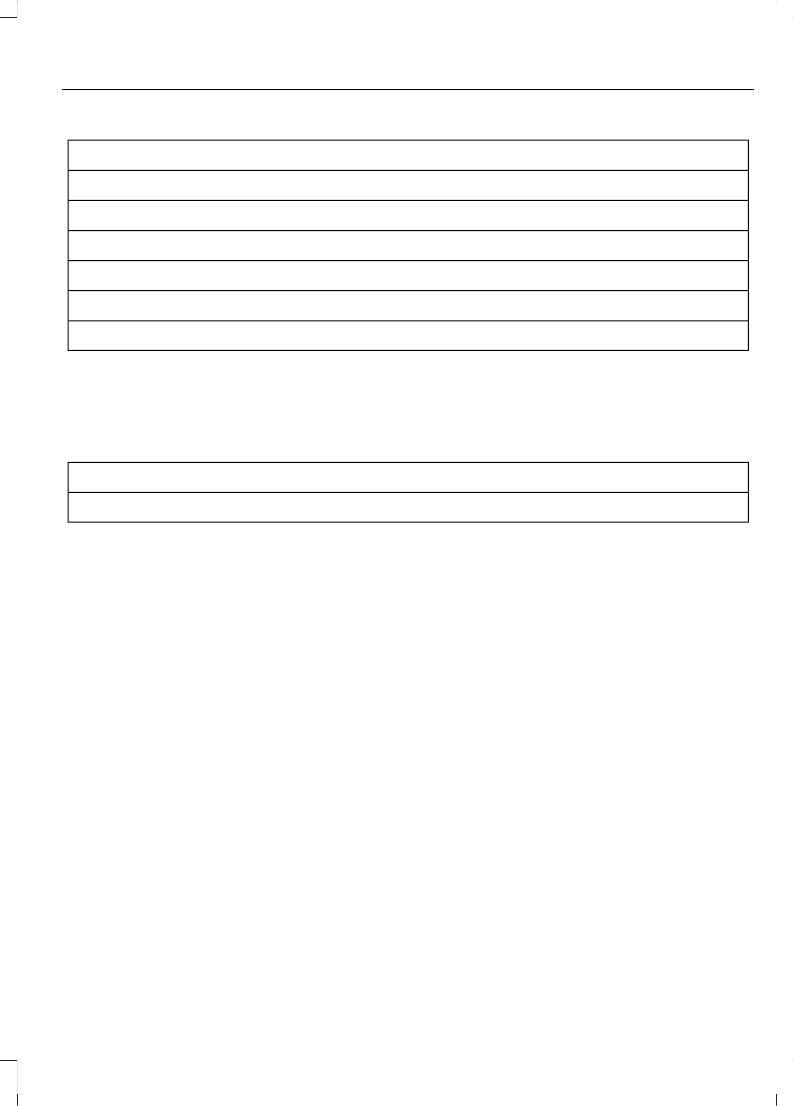
Display Mode
Distance to Empty
Tach and Gauges
Off Road
Digital Speedometer
Tire Pressure
Average Speed
Trip 1 & 2
You can access the menu using the
information display control.
Note:
Some options may appear slightly
different or not at all if the items are
optional.
Trip 1 & 2
All Values
All Values — shows all trip values (Trip Timer, Odometer and Average Fuel).
•
Trip Odometer — Shows your accumulated trip distance.
•
Trip Timer— The timer stops when you turn your vehicle off and restarts when you
restart your vehicle.
•
Average Fuel — Shows your average fuel economy for a given trip.
Note:
You can reset your trip information by pressing and holding the
OK
button on the left
hand steering wheel controls.
Fuel Economy
Use the left and right arrow buttons to
choose the desired fuel economy display.
101
Information Displays
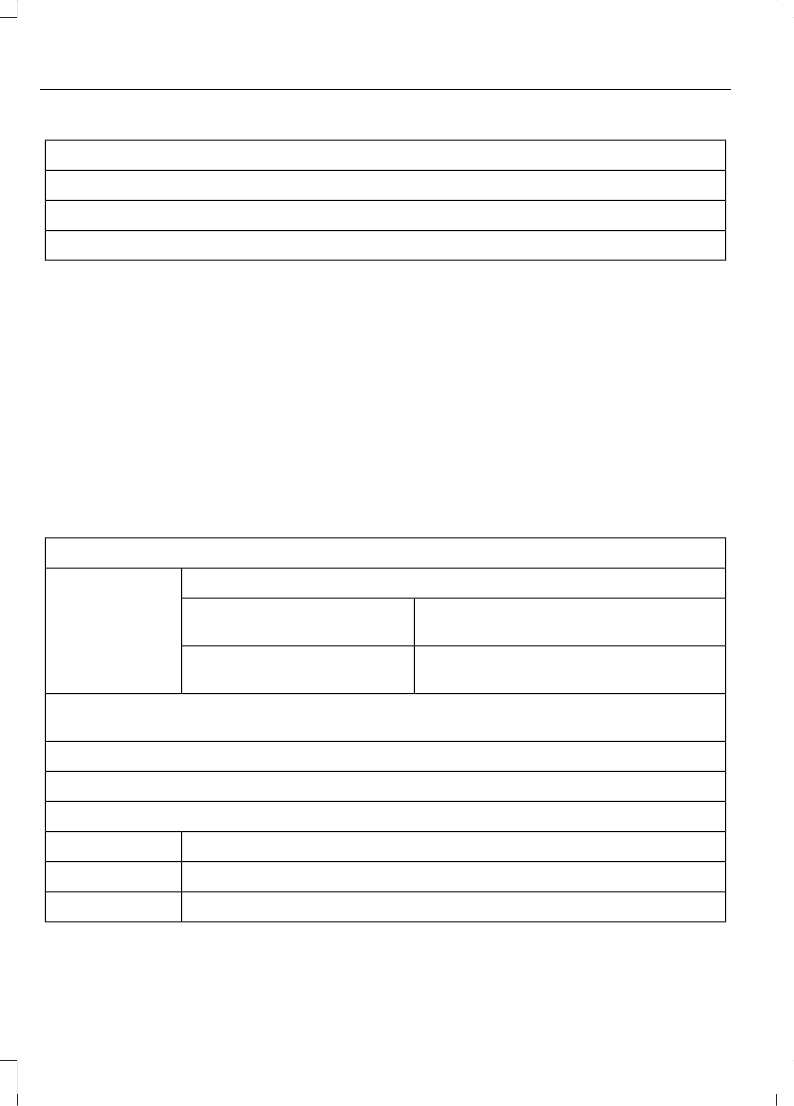
Fuel Economy
Fuel Economy
Fuel History
Auto StartStop
•
Fuel Economy - Shows a visual graph of your instantaneous fuel economy, average
fuel economy and distance to empty.
•
Fuel History - Shows a bar chart of your fuel history from the past 30 min, average
fuel economy and distance to empty.
•
Auto StartStop - Available Auto Start-Stop messaging will provide details about what
is happening with your system. See
Note:
You can reset your average fuel economy by pressing and holding the
OK
button on
the left hand steering wheel controls.
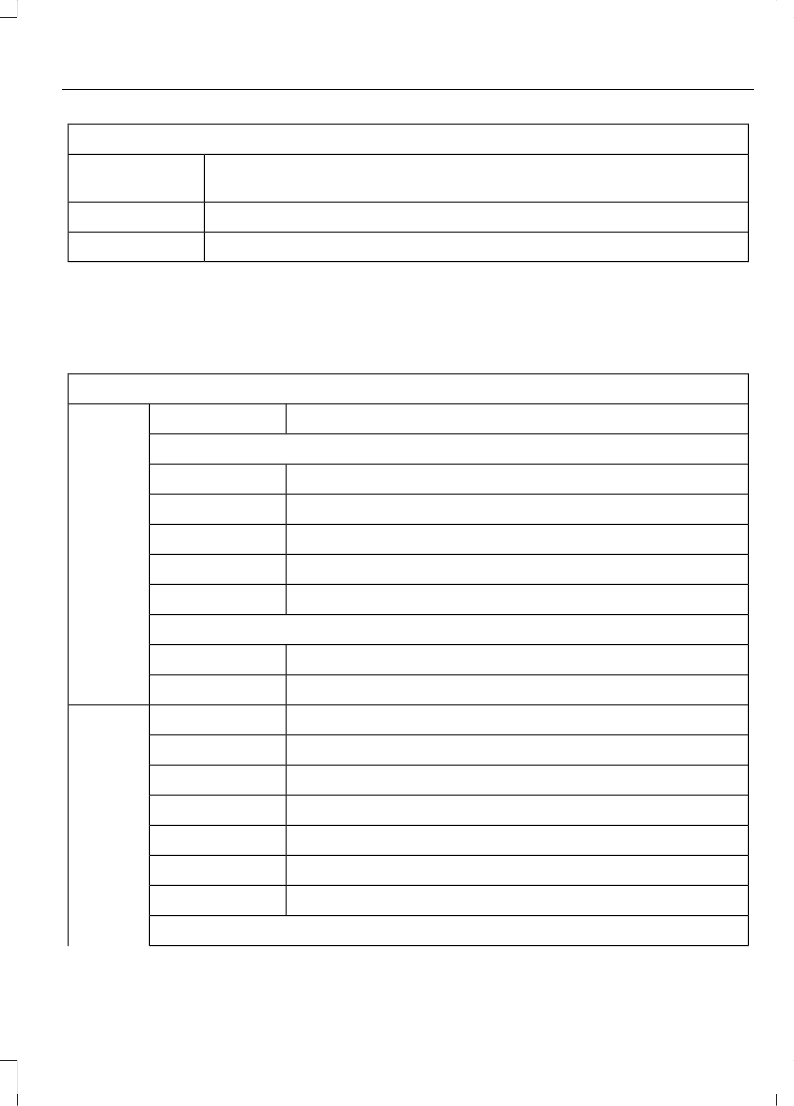
Driver Assist
In this mode, you can configure different
driver setting choices.
Note:
Some items are optional and may
not appear.
Driver Assist
Blind spot
Blind Spot
Enter the submenu and select your
setting
Trailer
Enter the submenu and select your
setting
Trailer Length
Cross Traffic
Alert
Hill Start Assist
Rear Park Aid
Trailer Sway
Enter the submenu and select your setting
Chimes
Enter the submenu and select your setting
Cruise Control
Enter the submenu and select your setting
Driver Alert
102
Information Displays
Driver Assist
Enter the submenu and select your setting
Lane Keeping
Sys
Enter the submenu and select your setting
Pre-Collision
Tire Monitor
Tire Monitor
Settings
In this mode, you can configure different
driver setting choices.
Note:
Some items are optional and may
not appear.
Settings
Enter the submenu and select your setting
Alarm
Vehicle
Auto Engine Off
Enter the submenu and select your setting
Lighting
Enter the submenu and select your setting
Locks
Enter the submenu and select your setting
Neutral Tow
XXX% - Hold
OK
to Reset
Oil Life Reset
Enter the submenu and select your setting
Remote Start
Seatbelts
Enter the submenu and select your setting
Windows
Enter the submenu and select your setting
Wipers
Mykey Status
Mykey Status
MyKey
Hold
OK
to Create MyKey
Create MyKey
Always On or User Selectable
911 Assist
Enter the submenu and select your setting
Do Not Disturb
Enter the submenu and select your setting
Traction Control
Enter the submenu and select your setting
Max Speed
Enter the submenu and select your setting
Speed Minder
Volume Limiter
103
Information Displays
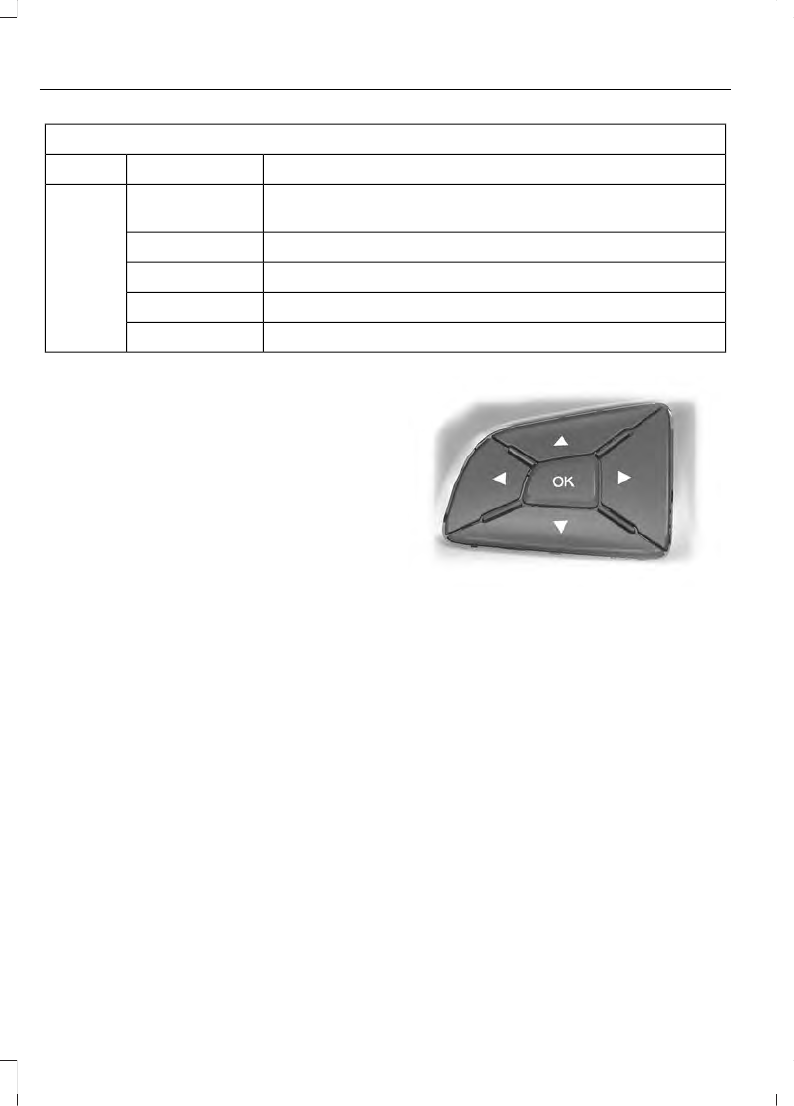
Settings
Hold
OK
to Clear All MyKeys
Clear MyKeys
Enter the submenu and select your setting
Measurement
Units
Display
Setup
Enter the submenu and select your setting
Temperature
Enter the submenu and select your setting
Gauge Display
Enter the submenu and select your setting
Tire Pressure
Enter the submenu and select your setting
Language
INFORMATION MESSAGES
Note:
Depending on your vehicle options
and instrument cluster type, not all
messages display or are available. The
system may abbreviate or shorten certain
messages depending upon which cluster
type you have.
E205893
Press the
OK
button to acknowledge and
remove some messages from the
information display.
The system removes other messages after
a short time.
You need to confirm certain messages
before you can access the menus.
104
Information Displays
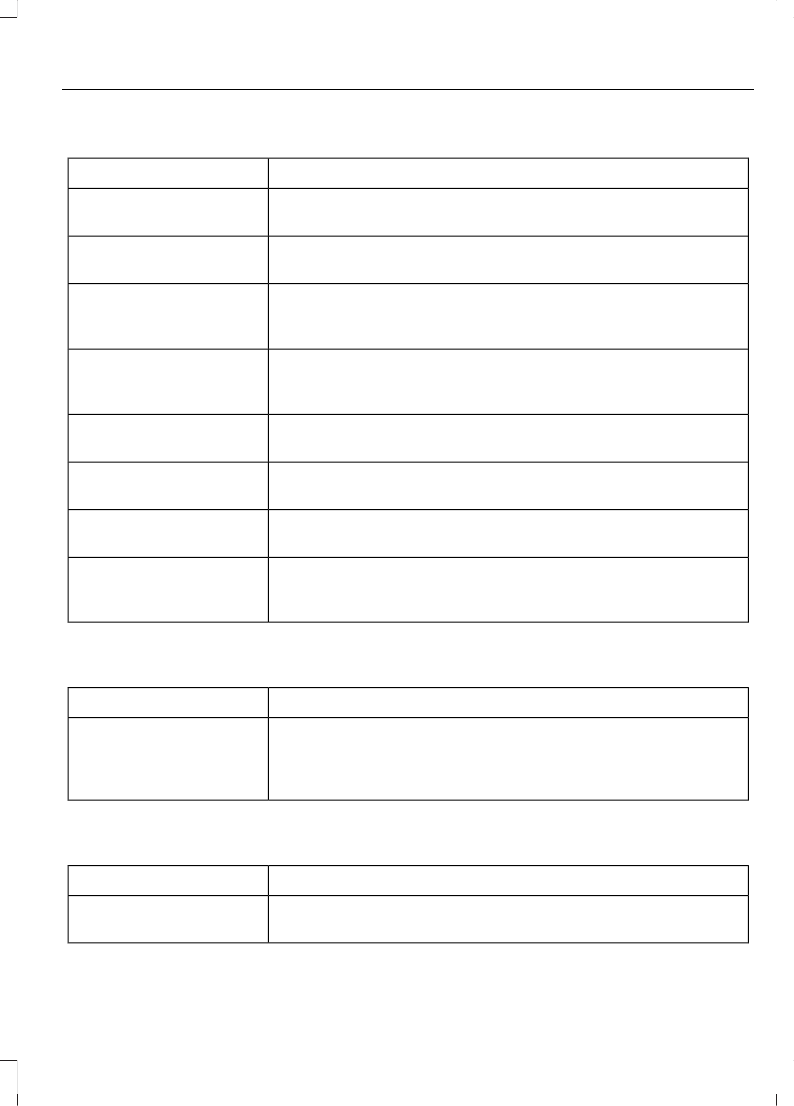
Adaptive Cruise Control
Action
Message
A radar malfunction is preventing the adaptive cruise control
from engaging. See
Adaptive Cruise
Malfunction
A condition exists such that the adaptive cruise cannot func-
tion properly. See
Adaptive Cruise Not
Available
You have a blocked sensor due to bad weather, ice, mud or
water in front of the radar sensor. You can typically clean the
sensor to resolve. See
Adaptive Cruise Not
Available Sensor
Blocked See Manual
The system has disabled the automatic braking.
Normal Cruise Active
Automatic Braking
Turned Off
A radar malfunction is preventing the adaptive cruise control
from engaging.
Front Sensor Not Aligned
The adaptive cruise has reinstated controls to the driver.
Adaptive Cruise - Driver
Resume Control
Your vehicle speed is too slow to activate the adaptive cruise.
Adaptive Cruise Speed
Too Low to Activate
The adaptive cruise is automatically adjusting the gap
distance and you need to shift the transmission into a lower
gear.
Adaptive Cruise Shift
Down
Airbag
Action
Message
Displays when the system detects a malfunction due to a
blocked sensor.
Occupant Sensor
BLOCKED Remove
Objects Near Passenger
Seat
Alarm and Security
Action
Message
Alarm triggered due to unauthorized entry. See
Vehicle Alarm To Stop
Alarm, Start Vehicle.
105
Information Displays
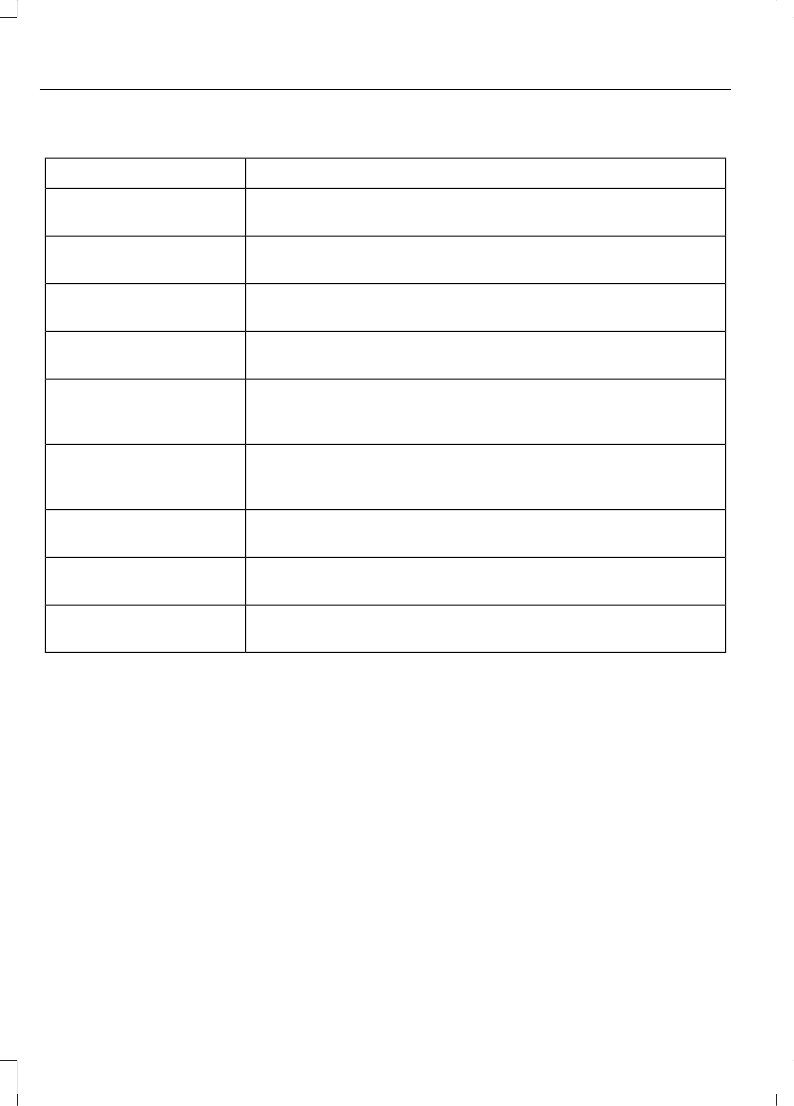
Auto-Start-Stop
Action
Message
The system is not functioning. A manual restart is required.
Auto StartStop Manual
Restart Required
The engine needs to be restarted, press the clutch pedal to
start.
Auto StartStop Press
Clutch to Start Engine
The engine needs to be restarted, press any pedal to start.
Auto StartStop Press a
Pedal to Start Engine
Select neutral for the system to restart the engine.
Auto StartStop Select
Neutral To Start Engine
Displays when the vehicle is in StartStop when the door is
opened. Switch the ignition off before leaving the vehicle if
the system has shut down the engine.
Vehicle is ON
The system detects a fault that requires service. Stop your
vehicle in a safe place. Have your vehicle checked as soon as
possible.
Auto StartStop Malfunc-
tion Service Required
The engine needs to be restarted, press the brake pedal harder
to start.
Auto StartStop Press
Brake Harder to Activate
Conditions are not met for the Auto StartStop system to
function properly.
Auto StartStop Not
Available
Select park for the system to restart the engine.
Auto StartStop Shift to
P, then Restart Engine
106
Information Displays
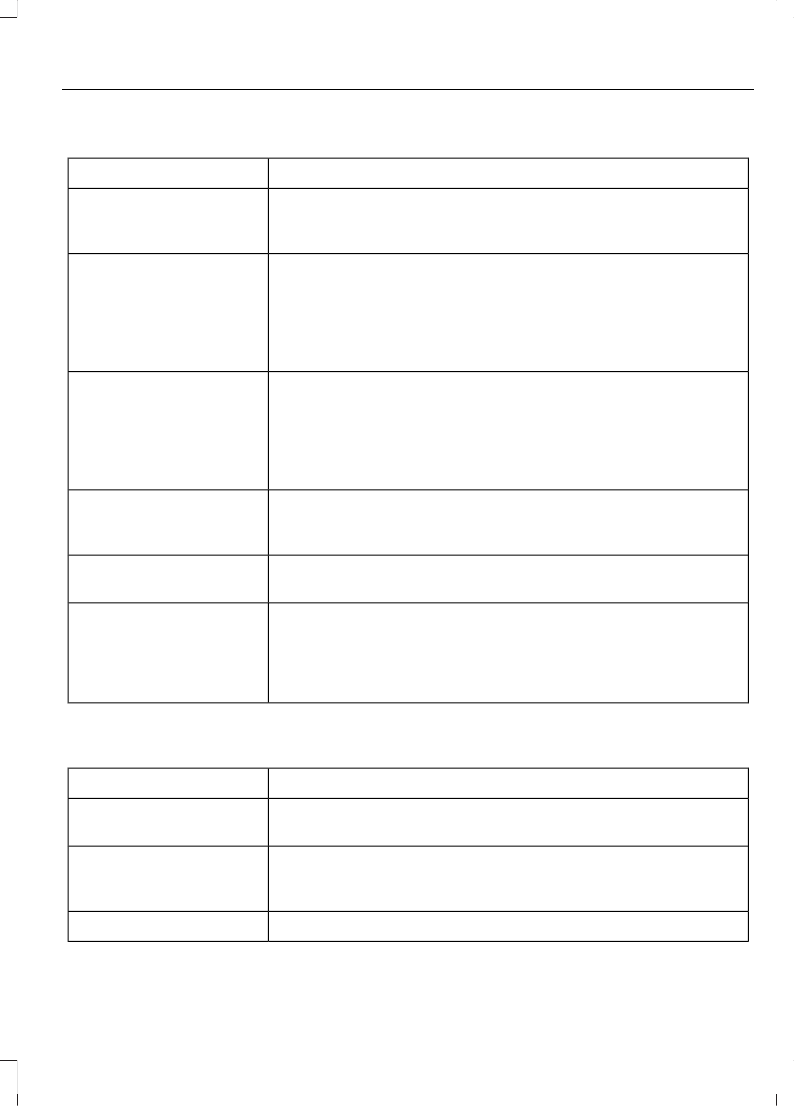
Battery and Charging System
Action
Message
The charging system needs servicing. If the warning stays on
or continues to come on, have your vehicle checked as soon
as possible.
Check Charging System
The battery management system detects an extended low-
voltage condition. Your vehicle will disable various features
to help preserve the battery. Turn off as many of the electrical
loads as soon as possible to improve system voltage. If the
system voltage has recovered, the disabled features will
operate again as normal.
Low Battery Features
Temporarily Turned Off
The battery management system determines that the battery
is at a low state of charge. Turn your ignition off as soon as
possible to protect the battery. This message will clear once
you restart your vehicle and the battery state of charge has
recovered. Turning off unnecessary electrical loads will allow
faster battery state-of-charge recovery.
Turn Power Off To Save
Battery
The charging system needs servicing. If the warning stays on
or continues to come on, have your vehicle checked as soon
as possible.
Charging System Service
Soon
The charging system needs servicing. Have your vehicle
checked as soon as possible.
Charging System Service
Now
The battery management system determines that the battery
is at a low state of charge. Turn your ignition off as soon as
possible to protect the battery. This message clears once you
restart your vehicle and the battery state of charge has
recovered.
Battery State of Charge
Low
Blind Spot Information and Cross Traffic Alert System
Action
Message
A fault with the system has occurred. Have your vehicle
checked as soon as possible.
Blindspot System Fault
The system sensors are blocked. See
Blindspot Not Available
Sensor Blocked See
Manual
The system detects a vehicle.
Cross Traffic Alert
107
Information Displays
Action
Message
The blind spot information system and cross traffic alert
system sensors are blocked. See
Cross Traffic Not Avail-
able Sensor Blocked See
Manual
A fault with the system has occurred. Have your vehicle
checked as soon as possible.
Cross Traffic System
Fault
The system automatically turns off and displays this message
when you connect a trailer to the vehicle that does not have
a trailer blind spot system or when you switch the trailer blind
spot system off through the information display. See
Cross Traffic Alert Deac-
tivated Trailer Attached
The system automatically turns off and displays this message
when you connect a trailer to the vehicle that does not have
a trailer blind spot system or when you connect a trailer and
do not set up a Blind Spot Trailer. See
Blind Spot Alert Deactiv-
ated Trailer Attached
Displays when the trailer width is wider than 8.2 ft (2.5 m)or
longer than 33 ft (10 m).
Trailer Blind Spot
not Operational
above Specified
Measurements
Doors and Locks
Action
Message
The door(s) listed is not completely closed.
X Door Ajar
Driver Alert
Action
Message
Stop and rest as soon as it is safe to do so.
Driver Alert Warning Rest
Now
Take a rest soon.
Driver Alert Warning Rest
Suggested
108
Information Displays
Drivetrain
Action
Message
Slow the vehicle to the displayed speed to allow the elec-
tronic locking differential to engage.
To Engage Locking
Differential Slow to XX
mph/km/h
The electronic locking differential requests the accelerator
to be released in order to engage.
To Engage Locking
Differential Release
Accelerator Pedal
An electronic locking differential (ELD) system fault is
present. Have your vehicle checked as soon as possible.
Check Locking Differen-
tial
The transfer case is in the neutral position. This message
indicates that your vehicle is safe to be towed with all four
wheels on the ground.
Neutral Tow Enabled
Leave Transmission in
Neutral
The transfer case is NOT in the neutral position. This message
indicates that your vehicle is NOT safe to be towed with all
four wheels on the ground.
Neutral Tow Disabled
Engine
Action
Message
The engine has reduced power to help reduce high
engine temperature.
Power Reduced to Lower Engine
Temp
Displays when the accelerator pedal is entrapped or
both accelerator and brake pedals are applied at the
same time. Have your vehicle checked as soon as
possible.
Brake Applied Power Reduced
Fuel
Action
Message
An early reminder of a low fuel condition.
Fuel Level Low
The fuel fill inlet may not be properly closed.
Check Fuel Fill Inlet
109
Information Displays
Keys and Intelligent Access
Action
Message
A reminder to press the brake while starting the vehicle.
To START Press Brake
The system does not detect a key in your vehicle.
No Key Detected
You pressed the StartStop button to switch off the engine
and your vehicle does not detect your intelligent access key
inside your vehicle.
Restart Now or Key is
Needed
Your vehicle is in the run ignition state.
Run Power Active
There is a problem with your vehicle’s starting system. Have
your vehicle checked as soon as possible.
Starting System Fault
You have successfully programmed an intelligent access key
to the system.
Key Program Successful
You have failed to program an intelligent access key to the
system.
Key Program Failure
You have programmed the maximum number of keys to the
system.
Max Number of Keys
Learned
You have not programmed enough keys to the system.
Not Enough Keys
Learned
The key battery is low. Change the battery as soon as possible.
Key Battery Low Replace
Soon
Informs you that you are exiting your vehicle and the engine
is on.
Engine ON
110
Information Displays
Lane Keeping System
Action
Message
The system has malfunctioned. Have your vehicle checked
as soon as possible.
Lane Keeping Sys.
Malfunction Service
Required
The system has detected a condition that has caused the
system to be temporarily unavailable. See
Front Camera Tempor-
arily Not Available
The system has detected a condition that requires you to
clean the windshield in order for it to operate properly.
Front Camera Low Visib-
ility Clean Screen
The system has malfunctioned. Have your vehicle checked
as soon as possible.
Front Camera Malfunc-
tion Service Required
The system requests you to keep your hands on the steering
wheel.
Keep Hands on Steering
Wheel
Maintenance
Action
Message
Stop your vehicle as soon as safely possible and turn off the
engine. Check the oil level. If the warning stays on or continues
to come on with your engine running, have your vehicle
checked as soon as possible.
Low Engine Oil Pressure
The engine oil life remaining is 10% or less.
Change Engine Oil Soon
The oil life left is at 0%.
Oil Change Required
The brake fluid level is low, inspect the brake system immedi-
ately.
Brake Fluid Level Low
The brake system needs servicing. Stop your vehicle in a safe
place. Have your vehicle checked as soon as possible.
Check Brake System
Your vehicle is still in Transport or Factory mode. This may
not allow some features to operate properly. Have your vehicle
checked as soon as possible.
Transport / Factory
Mode Contact Dealer
The powertrain needs service due to a powertrain malfunction.
See Manual
111
Information Displays
MyKey
Action
Message
You cannot program a MyKey.
MyKey not Created
MyKey is active.
MyKey Active Drive
Safely
When switching on your vehicle and MyKey is in use, displays
that the MyKey speed limit is on.
Speed Limited to XX
MPH/km/h
MyKey is in use and the MyKey speed limit is on and the vehicle
speed is approaching 81 mph (130 km/h).
Near Vehicle Top Speed
You have reached the speed limit set for your MyKey.
Vehicle at Top Speed of
MyKey Setting
You have an active MyKey with a programmed set speed limit.
Check Speed Drive
Safely
Belt-Minder turns on with a MyKey in use.
Buckle Up to Unmute
Audio
With a MyKey in use, AdvanceTrac turns on.
AdvanceTrac On -
MyKey Setting
With a MyKey in use, traction control turns on.
Traction Control On -
MyKey Setting
With a MyKey in use, park aid is always on.
MyKey Park Aid Cannot
be Deactivated
With a MyKey in use, lane keeping alert turns on.
Lane Keeping Alert On
MyKey Setting
112
Information Displays
Park Aid
Action
Message
The system has detected a condition that requires service.
Have your vehicle checked as soon as possible. See
Check Front Park Aid
The system has detected a condition that requires service.
Have your vehicle checked as soon as possible. See
Check Rear Park Aid
Displays the park aid status.
Front Park Aid On Off
Displays the park aid status.
Rear Park Aid On Off
Power Steering
Action
Message
The power steering system has detected a condition that
requires service. Have your vehicle checked as soon as
possible.
Steering Fault Service
Now
The power steering system is not working. Stop your vehicle
in a safe place. Have your vehicle checked as soon as possible.
Steering Loss Stop
Safely
The power steering system has detected a condition within
the power steering system, passive entry or the passive start
system requires service. Have your vehicle checked as soon
as possible.
Steering Assist Fault
Service Required
Pre-Collision Assist
Action
Message
A fault with the system has occurred. Have your vehicle
checked as soon as possible.
Collision Warning
Malfunction
You have a blocked sensor due to bad weather, ice, mud or
water in front of the radar sensor. You can typically clean the
sensor to resolve. See
Collision Warning Not
Available Sensor
Blocked See Manual
A fault with the system has occurred. Have your vehicle
checked as soon as possible.
Collision Warning Not
Available
113
Information Displays
Remote Start
Action
Message
A reminder to push the start button to drive your vehicle after
a remote start.
To Drive: Press Start
Button
Starting System
Action
Message
A reminder to apply the brake when starting your vehicle.
To START Press Brake
The starter has exceeded its cranking time in attempting to
start your vehicle.
Cranking Time Exceeded
The starter is attempting to start your vehicle.
Engine Start Pending
Please Wait
The system has cancelled the pending start.
Pending Start Cancelled
Tire Pressure Monitoring System
Action
Message
One or more tires on your vehicle has low tire pressure.
Tire Pressure Low
The tire pressure monitoring system is malfunctioning. If the
warning stays on or continues to come on, have your vehicle
checked as soon as possible. See
Tire Pressure Monitor
Fault
A tire pressure sensor is malfunctioning or your spare tire is in
use. See
Tire Pressure Monitoring System
the warning stays on or continues to come on, have your
vehicle checked as soon as possible.
Tire Pressure Sensor
Fault
Traction Control
Action
Message
The status of the traction control system after you switched
it off.
Traction Control Off
The status of the traction control system after you switched
it on.
Traction Control On
114
Information Displays
Trail Control
Action
Message
You must reduce your vehicle speed to use trail control.
Reduce Speed To Enter Trail
Control
You must release the park brake to use trail control.
Trail Control Not Available with
Park Brake Applied
You successfully enabled trail control and must press
SET to activate.
Trail Control Enabled Use SET
Button to Set Speed
A trail control system fault has occurred, the driver
must resume control.
Trail Control Off Driver Resume
Control
The system has switched off.
Trail Control Off
A system fault is present. See
Trail Control Fault See Manual
You must switch the cruise control off to use trail
control.
Trail Control Not Available with
Cruise Control Active
You must close the door to use trail control.
Trail Control Not Available with
Driver Door Open
Descent control mode is active and you have to press
the trail control switch to exit.
Descent Control Now Active
Press Trail Control Switch To
Exit
Trailer
Action
Message
A correct trailer connection is sensed during a given
ignition cycle.
Trailer Connected
A trailer connection becomes disconnected, either
intentionally or unintentionally, and has been sensed
during a given ignition cycle.
Trailer Disconnected
The trailer sway control has detected trailer sway.
Trailer Sway Reduce Speed
There are certain faults in your vehicle wiring and trailer
wiring/brake system. See
Trailer Wiring Fault
There is a fault with your trailer turn lamp. Check your
lamp.
Trailer Left Turn Lamps Fault
Check Lamps
115
Information Displays
Action
Message
There is a fault with your trailer turn lamp. Check your
lamp.
Trailer Right Turn Lamps Fault
Check Lamps
There is a fault with your trailer battery. See
Trailer Battery Not Charging See
Manual
There is a fault with your vehicle trailer lighting module.
Trailer Lighting Module Fault
See Manual
4WD
Action
Message
A 4X4 system fault is present. Have your vehicle
checked as soon as possible.
Check 4x4
The 4X4 system is making a shift.
4x4 Shift in Progress
Displays when you attempt to switch to 4X4 LOW and
you do not shift the transmission to neutral (N).
For 4x4 LOW Shift to N
Displays when you attempt to switch to 4X4 LOW and
your vehicle's speed is greater than 3 mph (5 km/h).
For 4x4 LOW Slow to 3 MPH
Displays when you attempt to switch from 4X4 LOW
and you do not shift the transmission to neutral (N).
To Exit 4x4 LOW Shift to N
Displays when you attempt to switch from 4X4 LOW
and your vehicle's speed is greater than 3 mph
(5 km/h).
To Exit 4x4 LOW Slow to 3 MPH
116
Information Displays


